Release 4.0
We're pleased to present Enterprise Lens 4.0, our biggest update to Enterprise Lens so far, featuring new features to enrich your storytelling experience, alongside greatly requested quality of life enhancements.
1. Features
1.1. Lens Wizard
A new Wizard is available inside all boxes, which allows you to quickly create data-driven associations and a lens according to the unique values of a lens.
With the new Wizard you are able to:
- Dynamically create new child boxes, based on the unique values of a lens
- Show each unique value within a box, via a newly created lens
- Automatically create Power Lenses to filter boxes (explained in the next section)
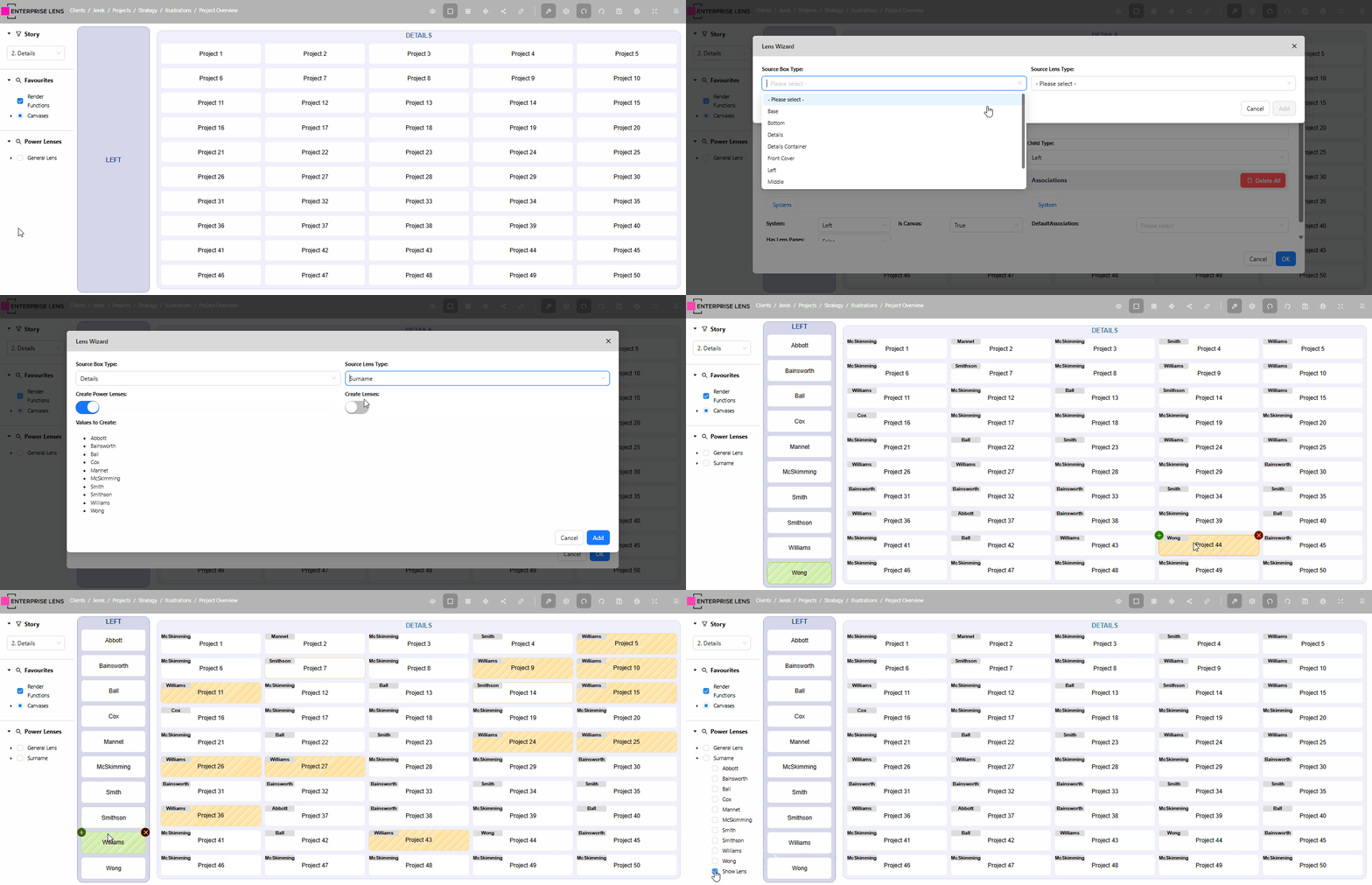
Read more about how to use the Lens Wizard here.
1.2. Power Lens Wizard
The Lens Wizard now supports the automatic creation of power lenses based on the unique values available to a lens, in the Edit Box form.
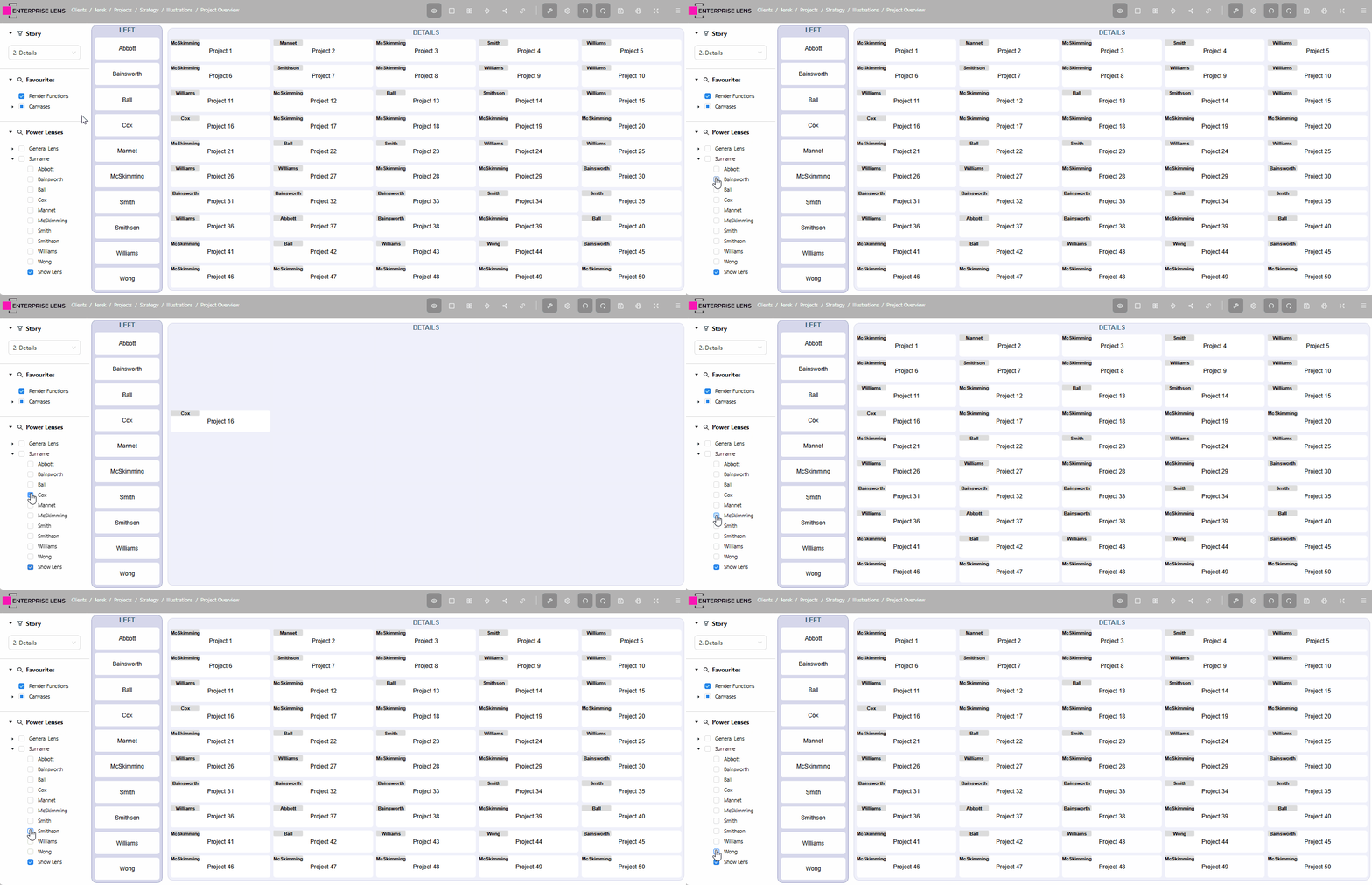
Read more about how to automatically create Power Lenses here.
1.3. New Design Layout
Utilising the latest versions of Ant Design and Reacts, we have introduced a new application-wide design language.
| New/Improved Component | Example |
|---|---|
| Rounded Buttons |   |
| Symmetrical Forms | 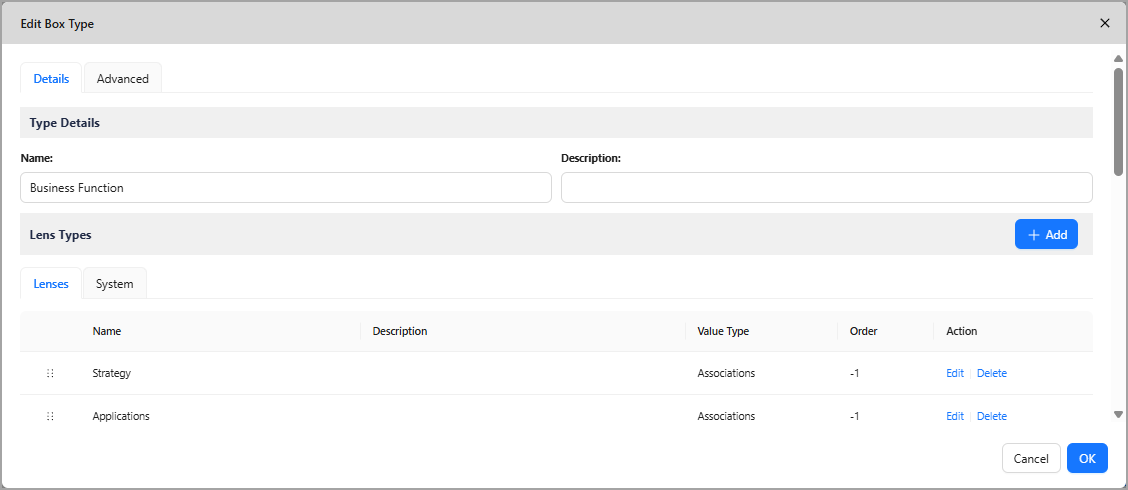 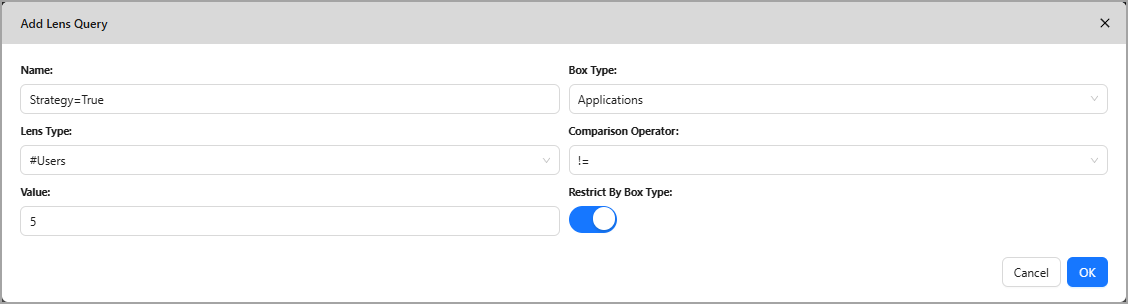 |
| Switches | 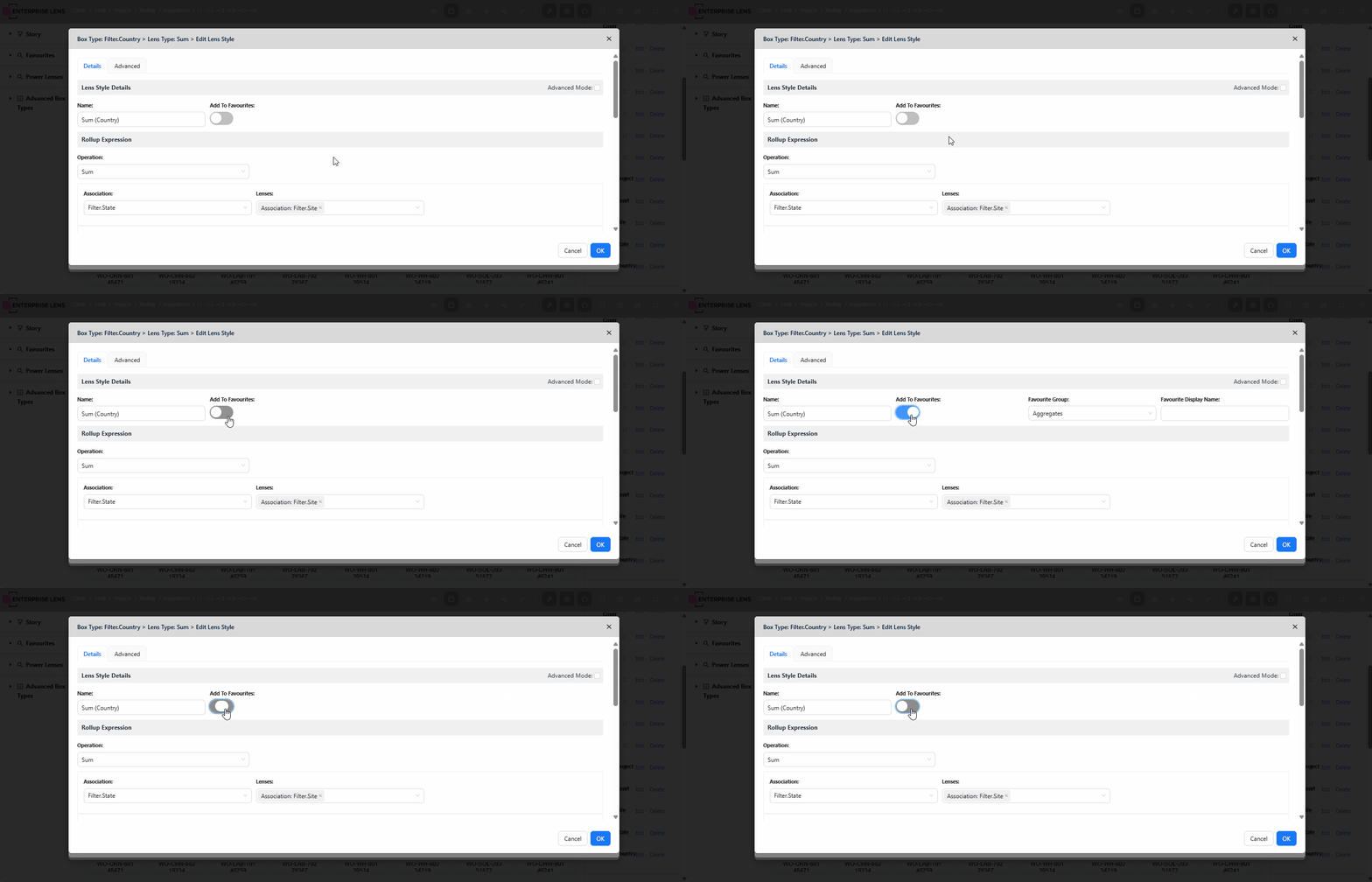 |
| Collapsible Menus | 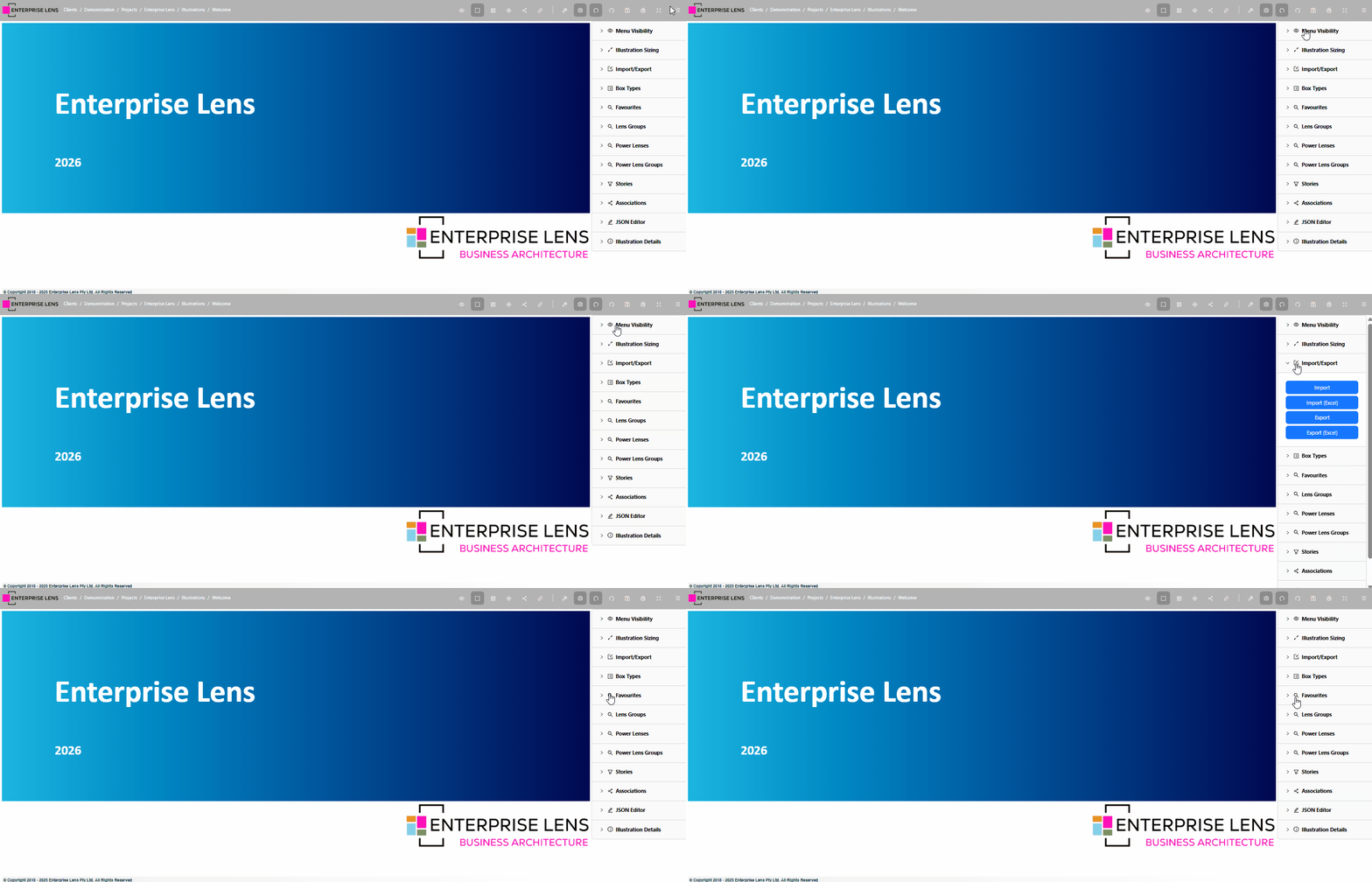 |
| Tabs | 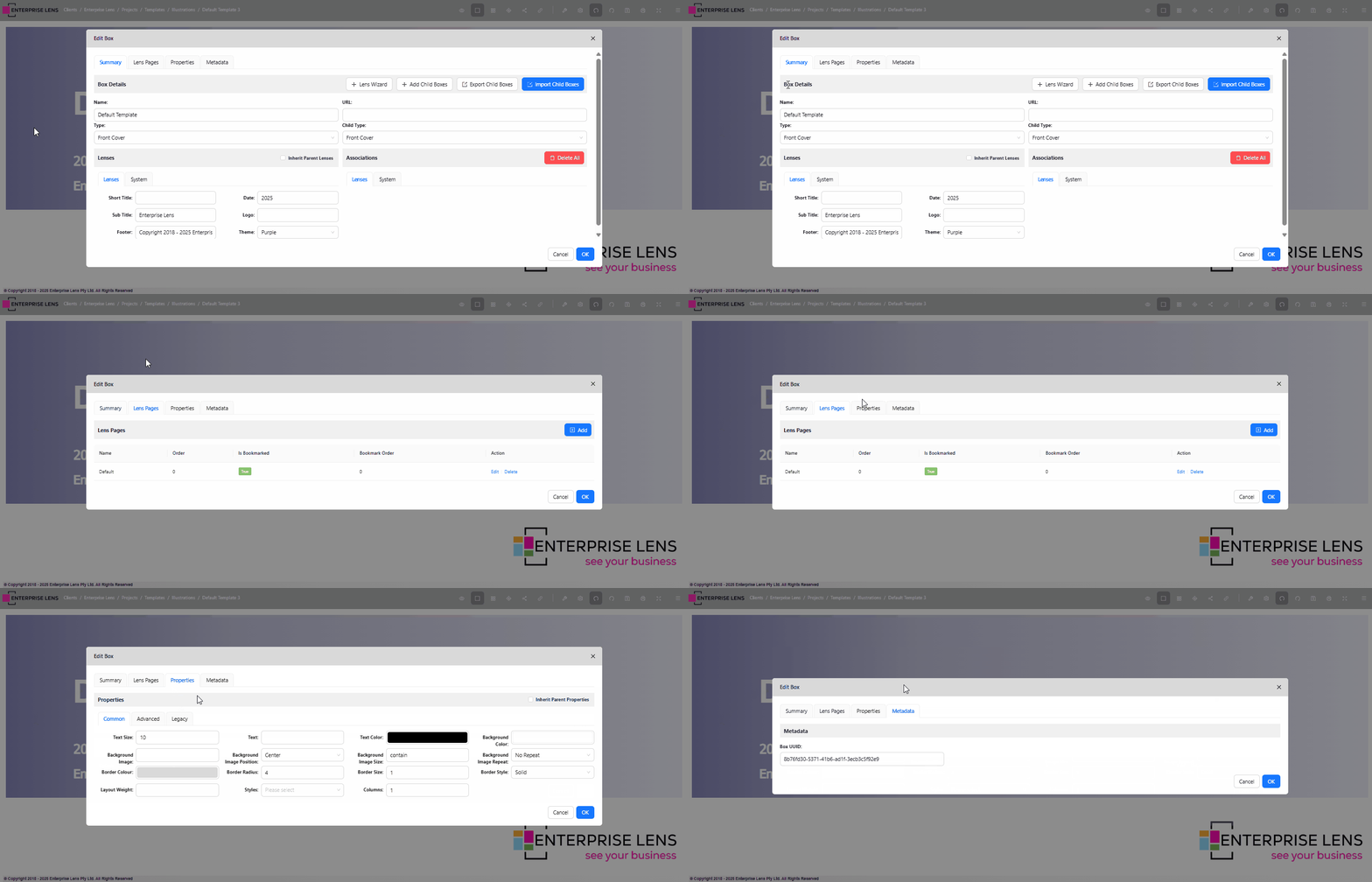 |
| Drag-and-Drop Sorting | 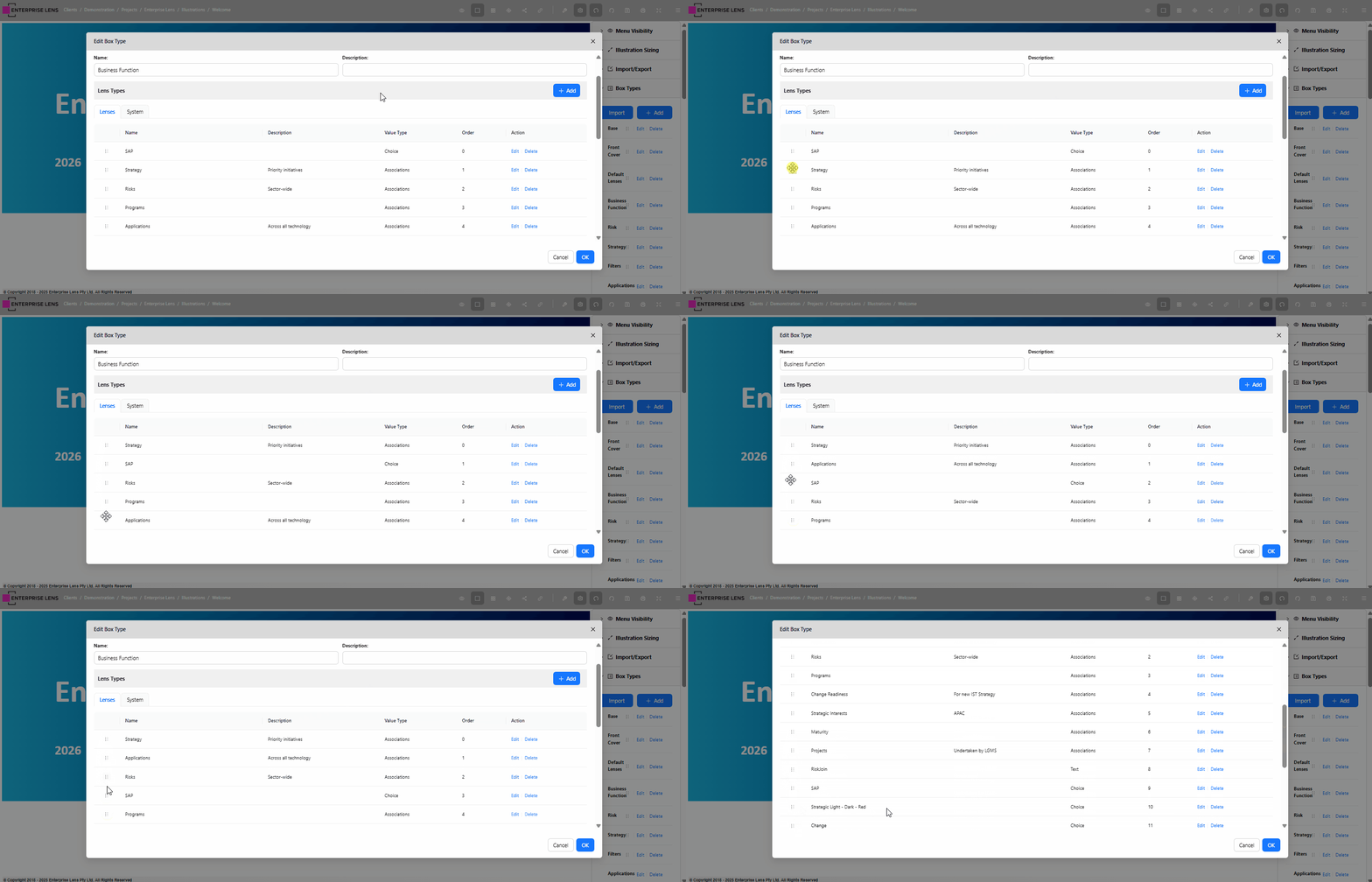 |
1.4. Rollup Wizard
Illustrators can now create quick sums, counts, and averages across boxes through the new Rollup Wizard available in the Lens Styles menu.
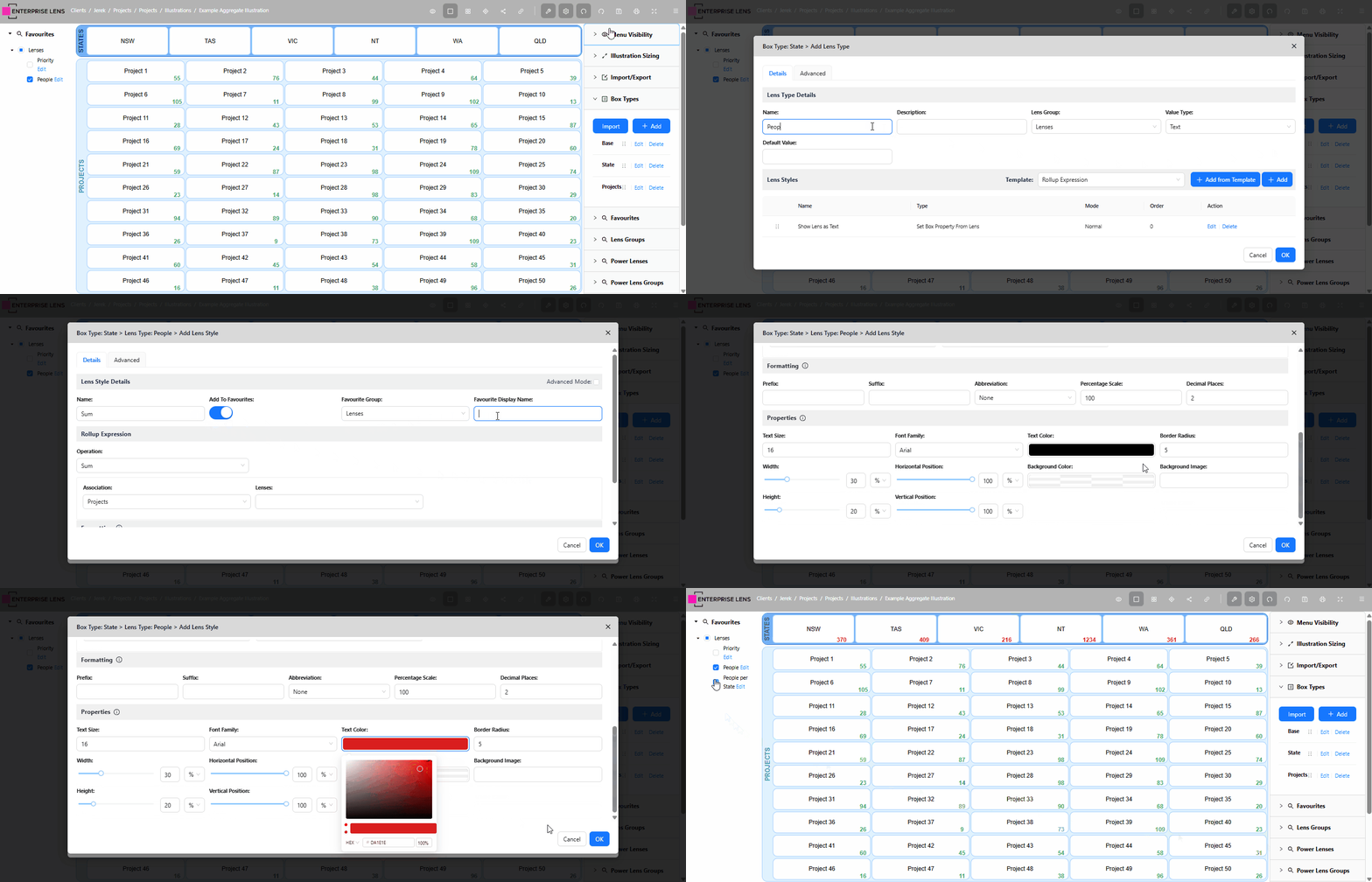
In the above example, the illustrator was able to quickly create a Sum of all People per State, located on the bottom right of every State box using our new Rollup Wizard.
Read more about how to use the Rollup Wizard here.
1.5. Favourites Menu
Lenses, Lens Styles, Power Lenses, and Box Types can now be grouped and stored in the Favourites Menu for quick and easy access, with the grouping configurable per story.
In the below image, the Illustrator groups Lenses for States and Projects with a Box Type under the Strategy Favourites Group.
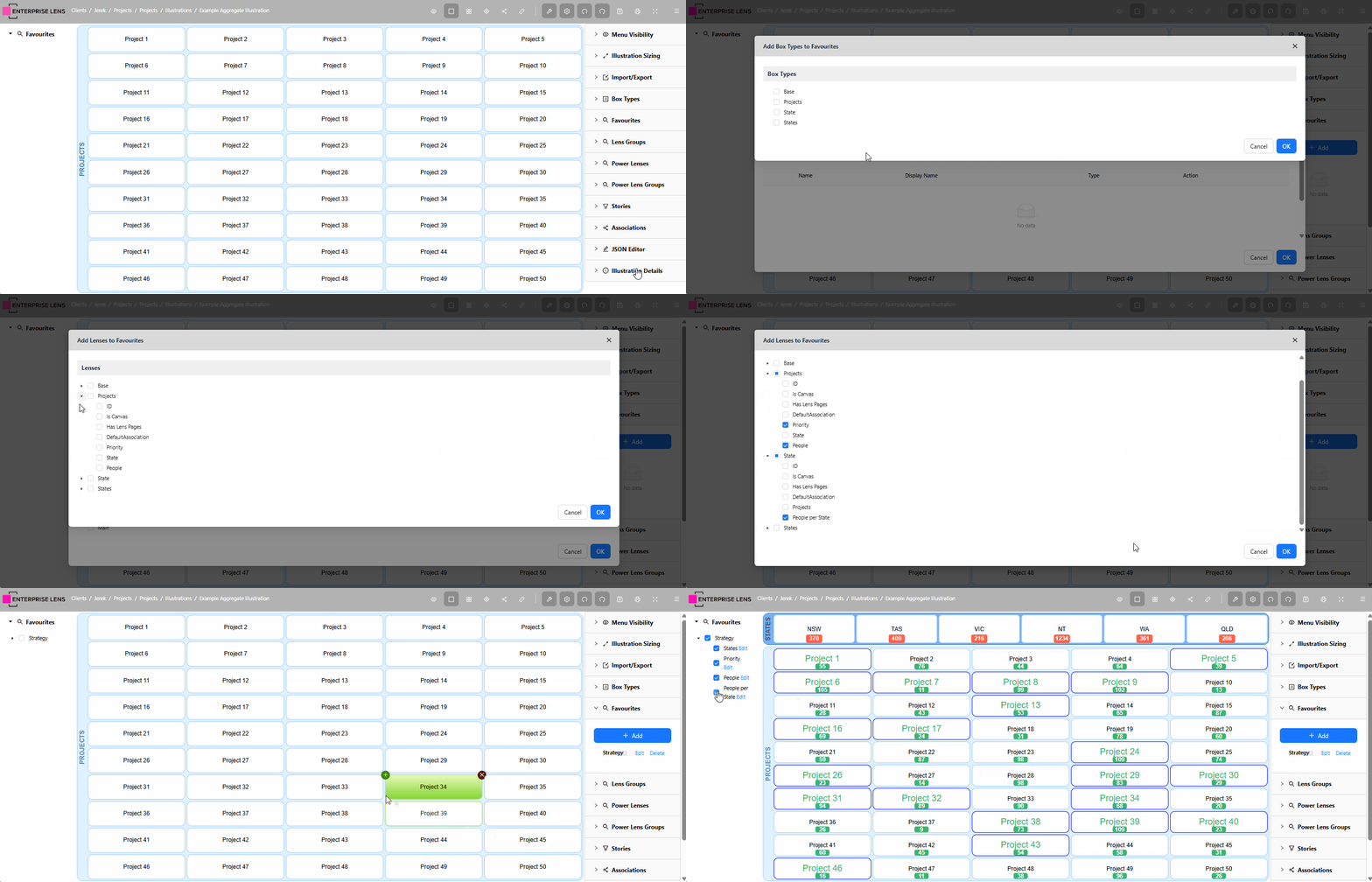
Read more about how to create your own Favourites Groups here.
1.6. Sticky Mode
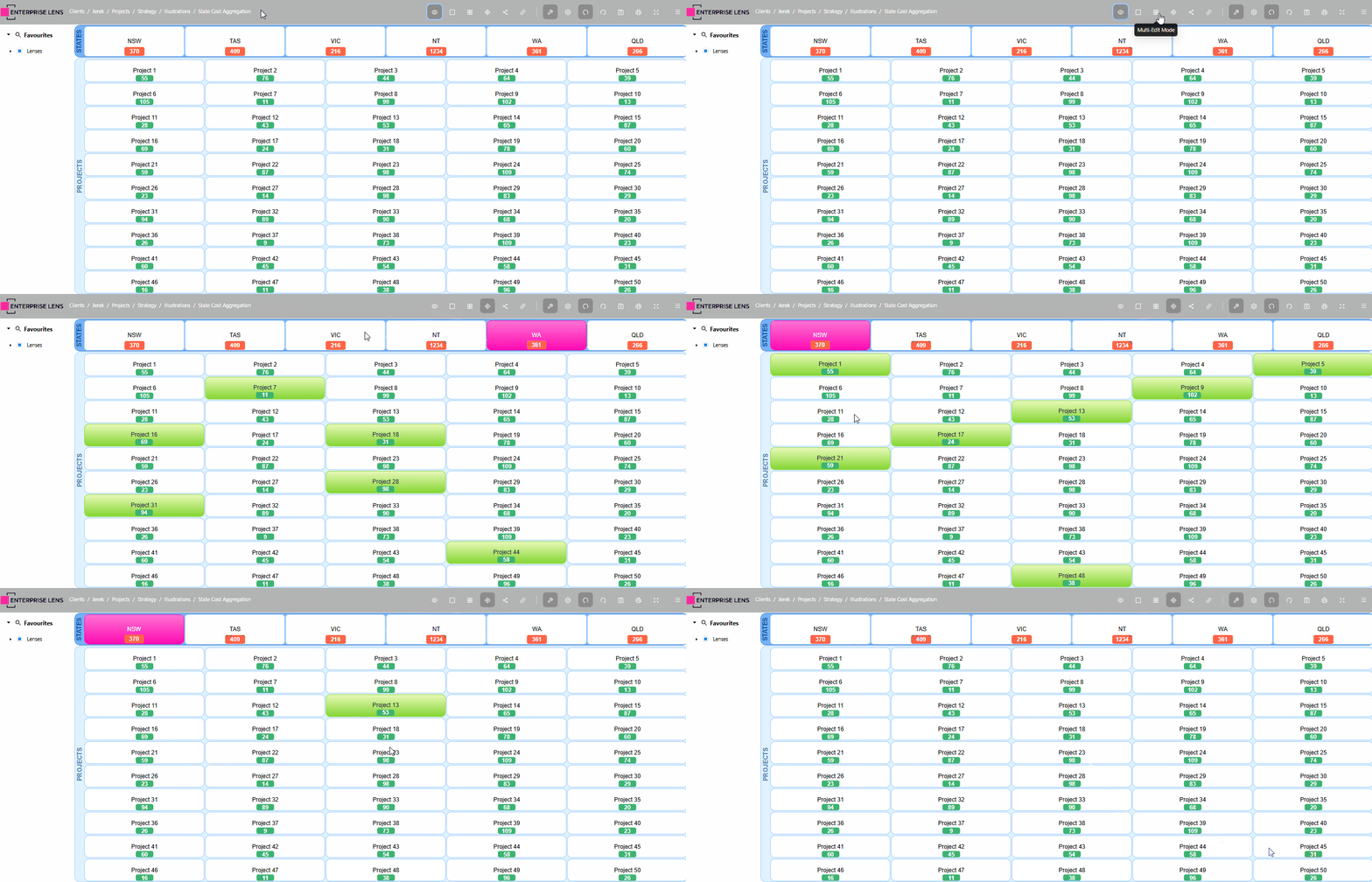
The redesigned navigation bar features a new Sticky Mode, located next to Association Mode.
- Clicking any box will provide a static highlight all associated boxes
- Both ends of associations are preserved, allowing you to click on a box currently highlighted to see what all that joins to and vice versa
1.7. Expression Wizard
Illustrators can now add complicated sums, averages, counts, and arithmetic functions across all boxes and box types through the new Expression Wizard.
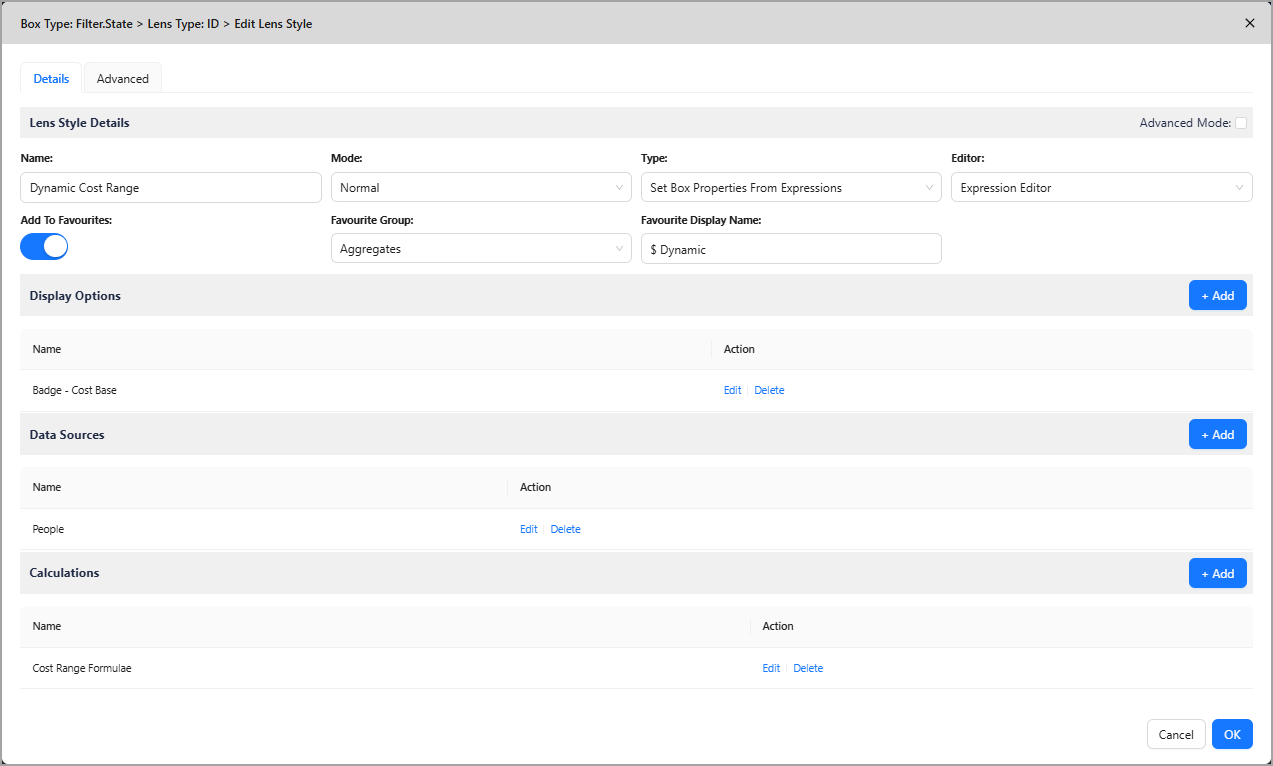
To learn how to use the Expression Wizard, contact Jerek Joseph to arrange Advanced Illustrators training.
1.8. Automatic Lens Grid
Lenses can now take one of nine automatic positions within a box, and adjust itself relative to other lenses to prevent overlapping.
- Currently the grid is only available in the Lens Wizard, and will be rolled out to more parts of illustration building soon
Below are all available positions a lens can sit within the automatic lens grid.
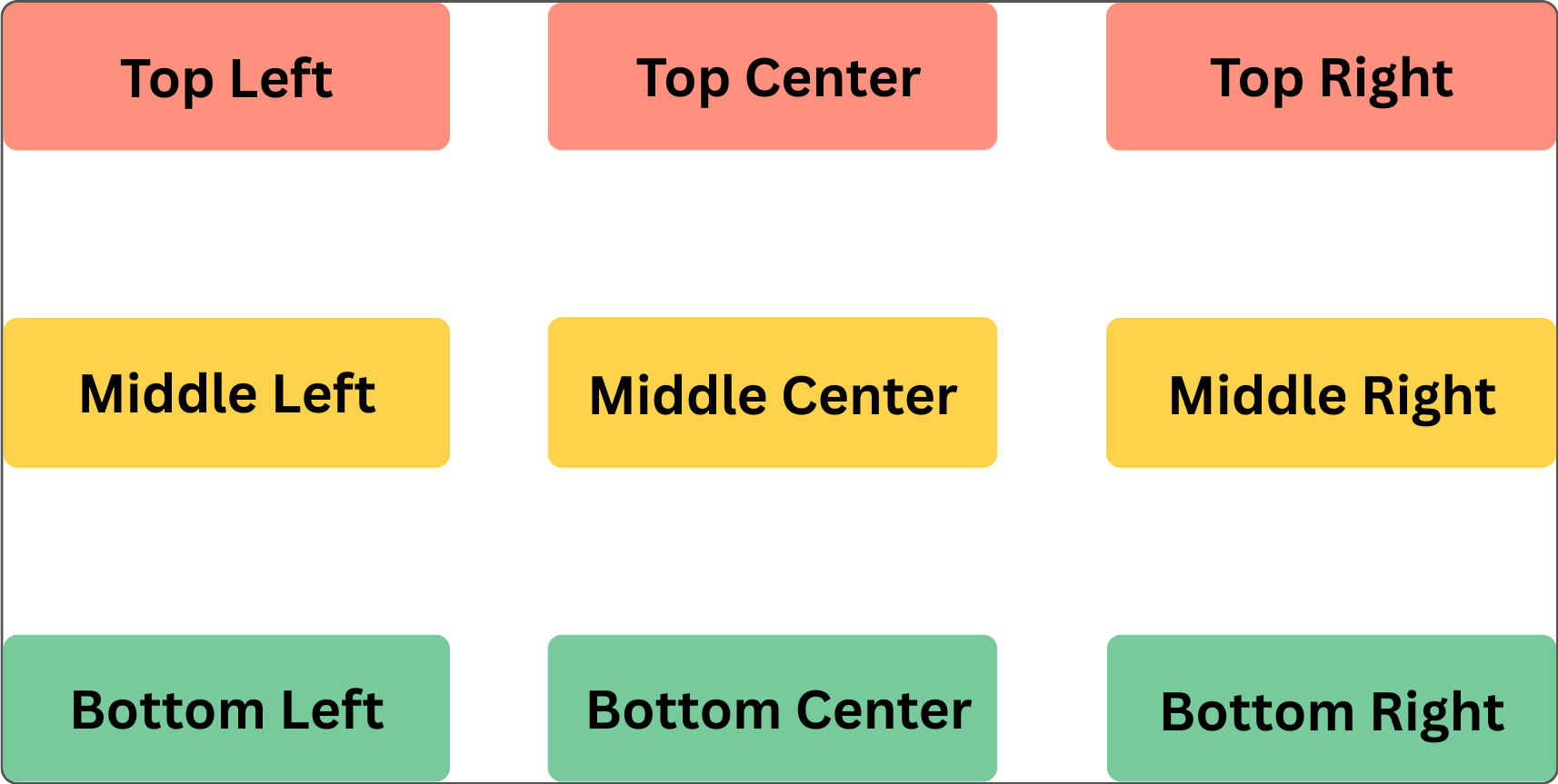
Two or more lenses can share the same Lens Position without conflict, as the grid will automatically space the lenses out.
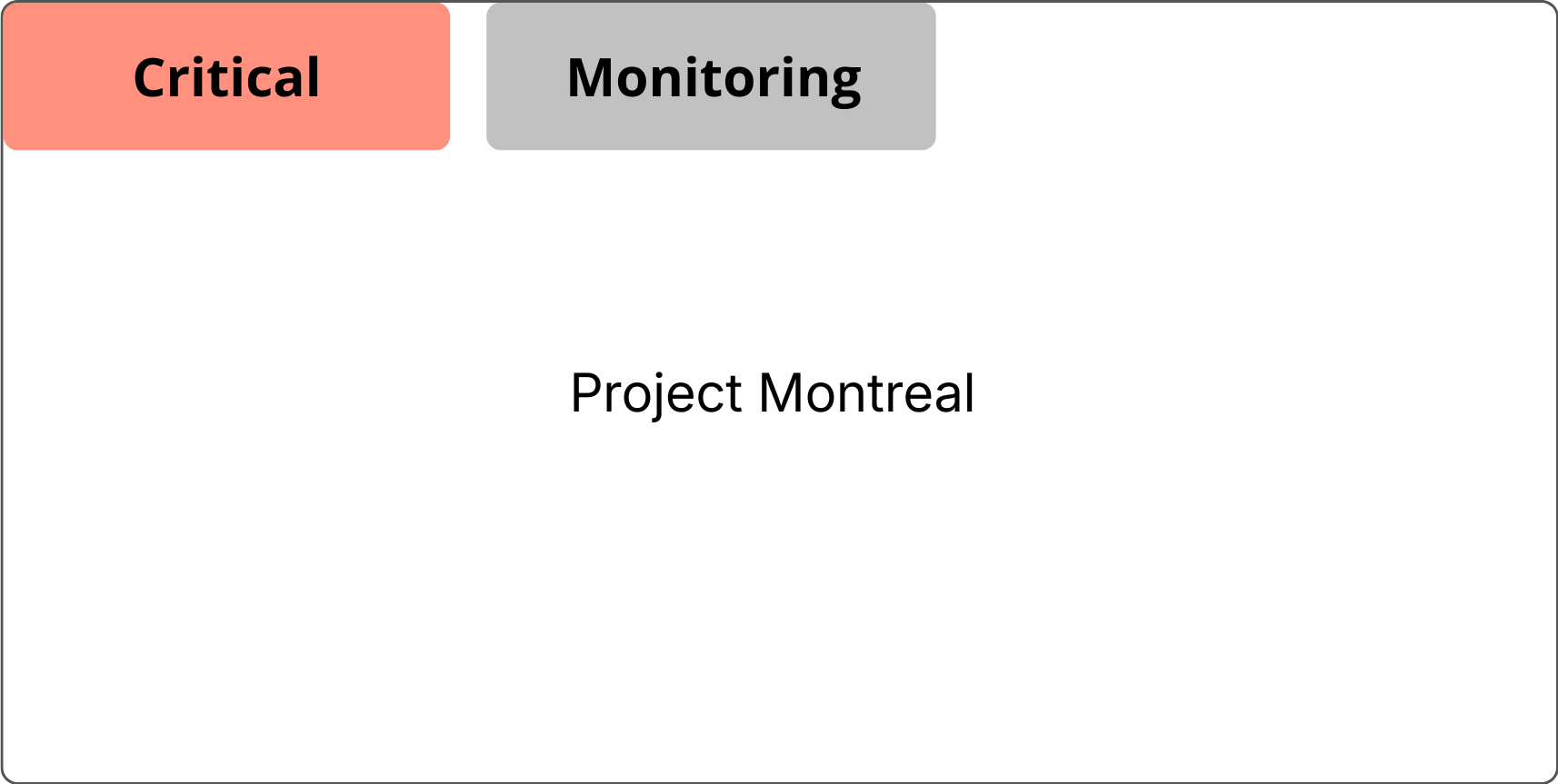
- In the below example, the two lenses both share the
Top Leftposition, and have been spaced out accordingly
1.9. Default Template 4.0
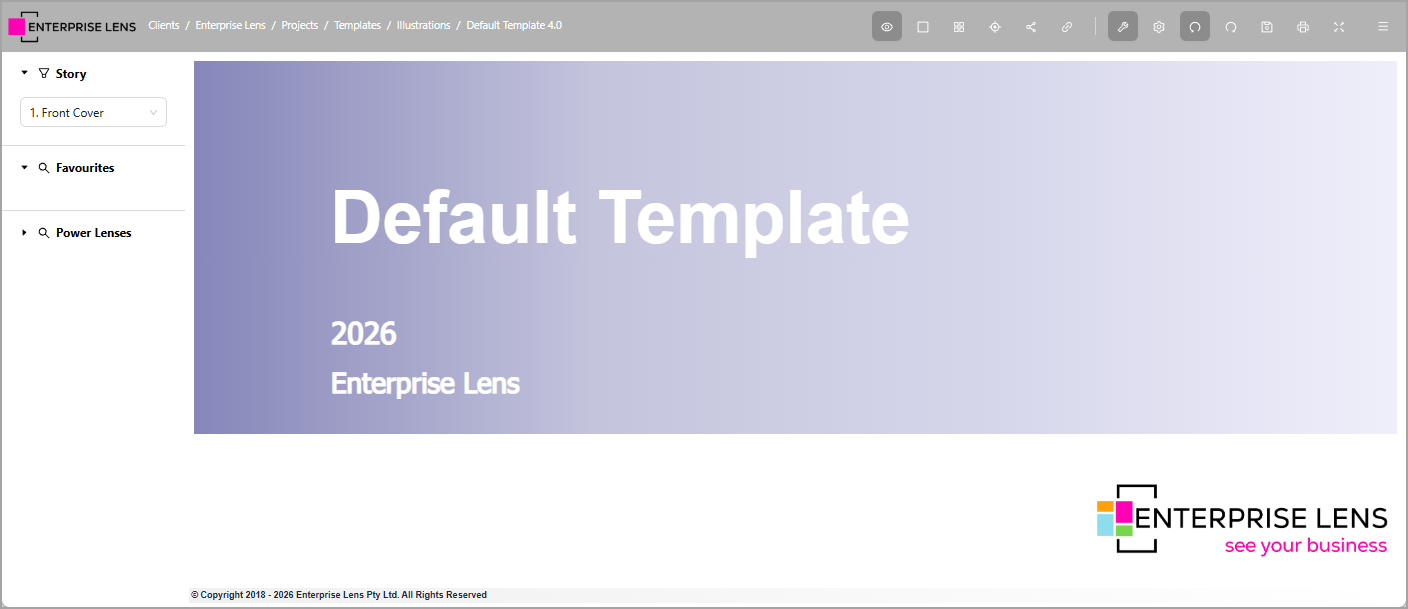
All clients have received Default Template 4.0, featuring
- Refreshed Front Cover
- 5 Smart Themes, a new feature to Enterprise Lens illustrations
- 6 pre-made box types, to quickly load illustration data into
- Prebuilt Favourites Groups, to manage Canvases, as well as provide a place for Rollup Lenses
1.9.1. Logo Inserts
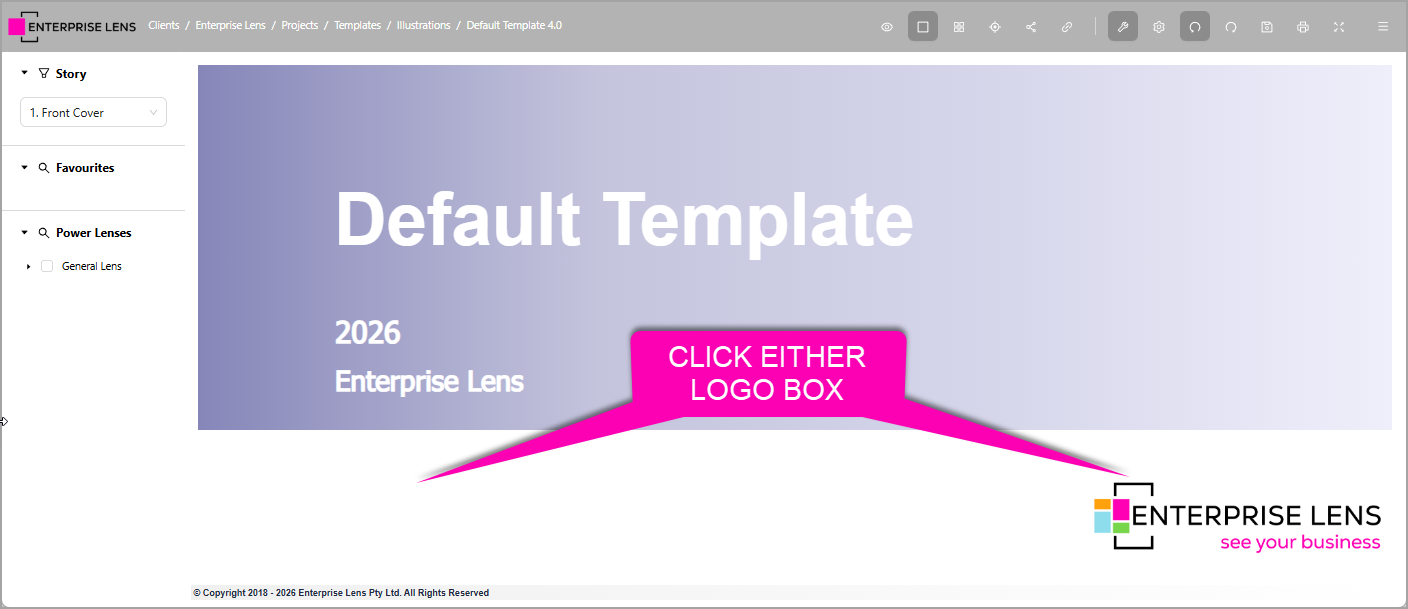
You can insert a logo on either side of the Front Cover.
-
Click either box below the Gradient front cover
-
Paste your logo URL inside the
LogoLens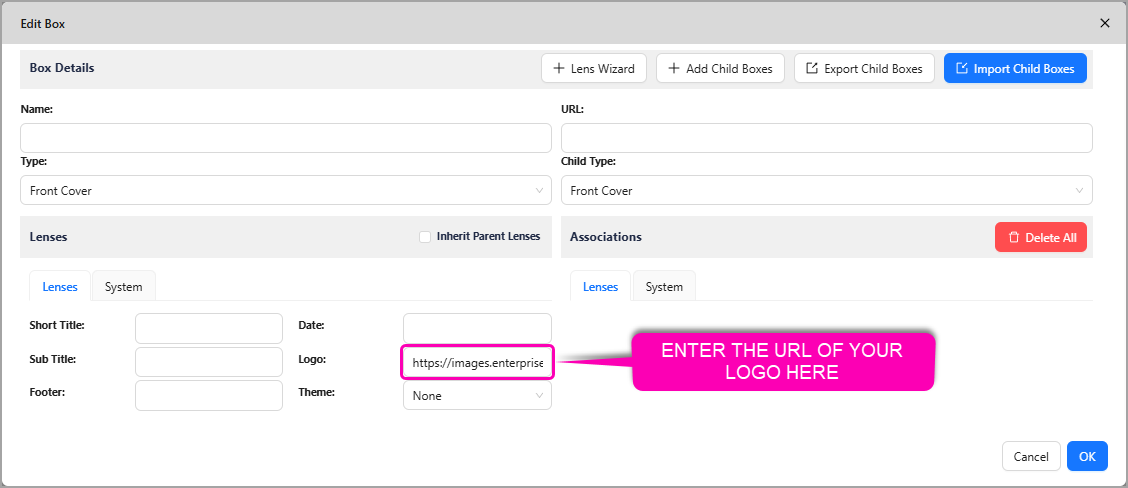
1.9.2. Smart Theme Picker
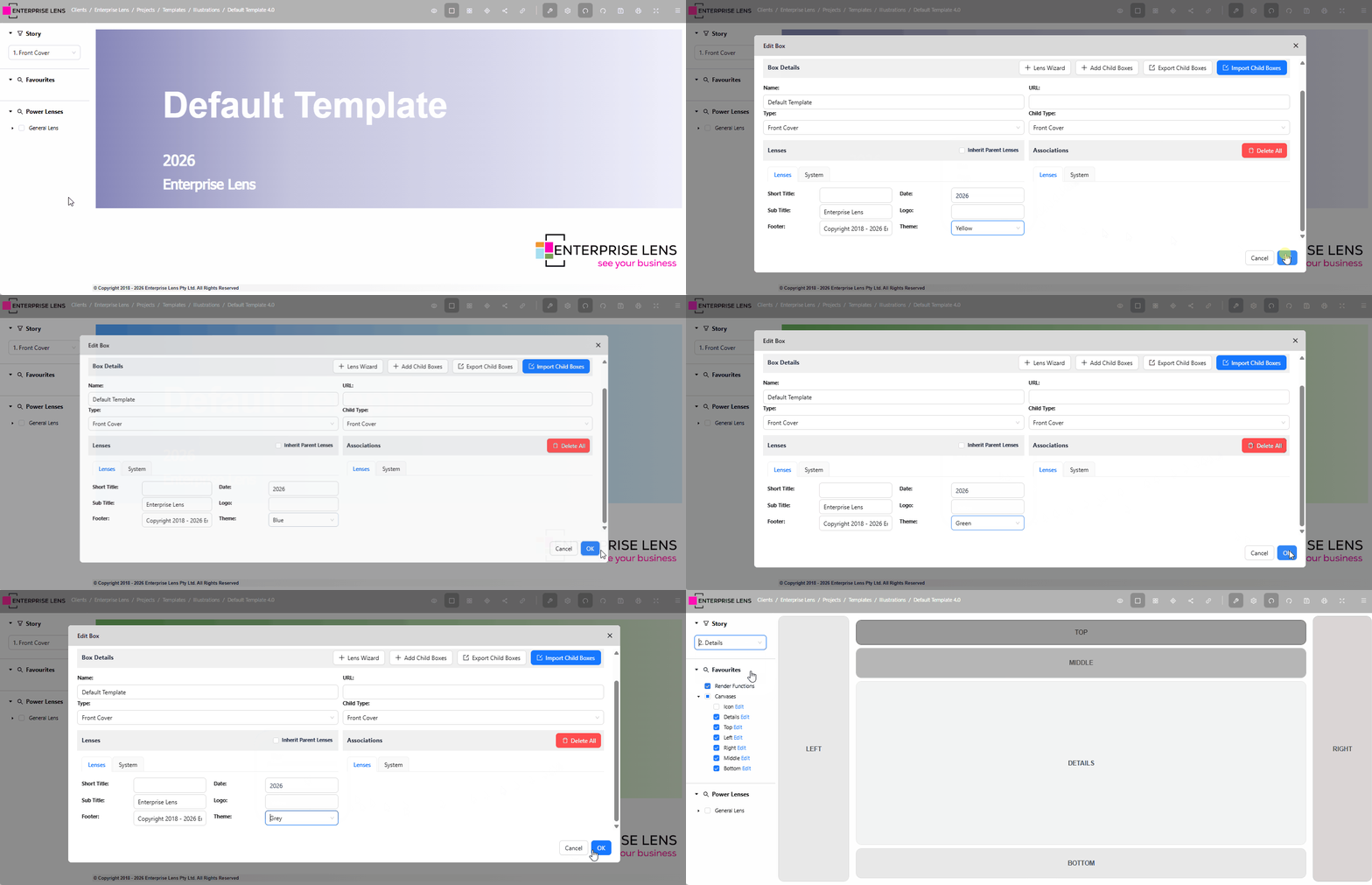
From the Front Cover, you can select any colour theme in the Edit Box form, and it will apply to the entire illustration.
1.9.3. New Box Types
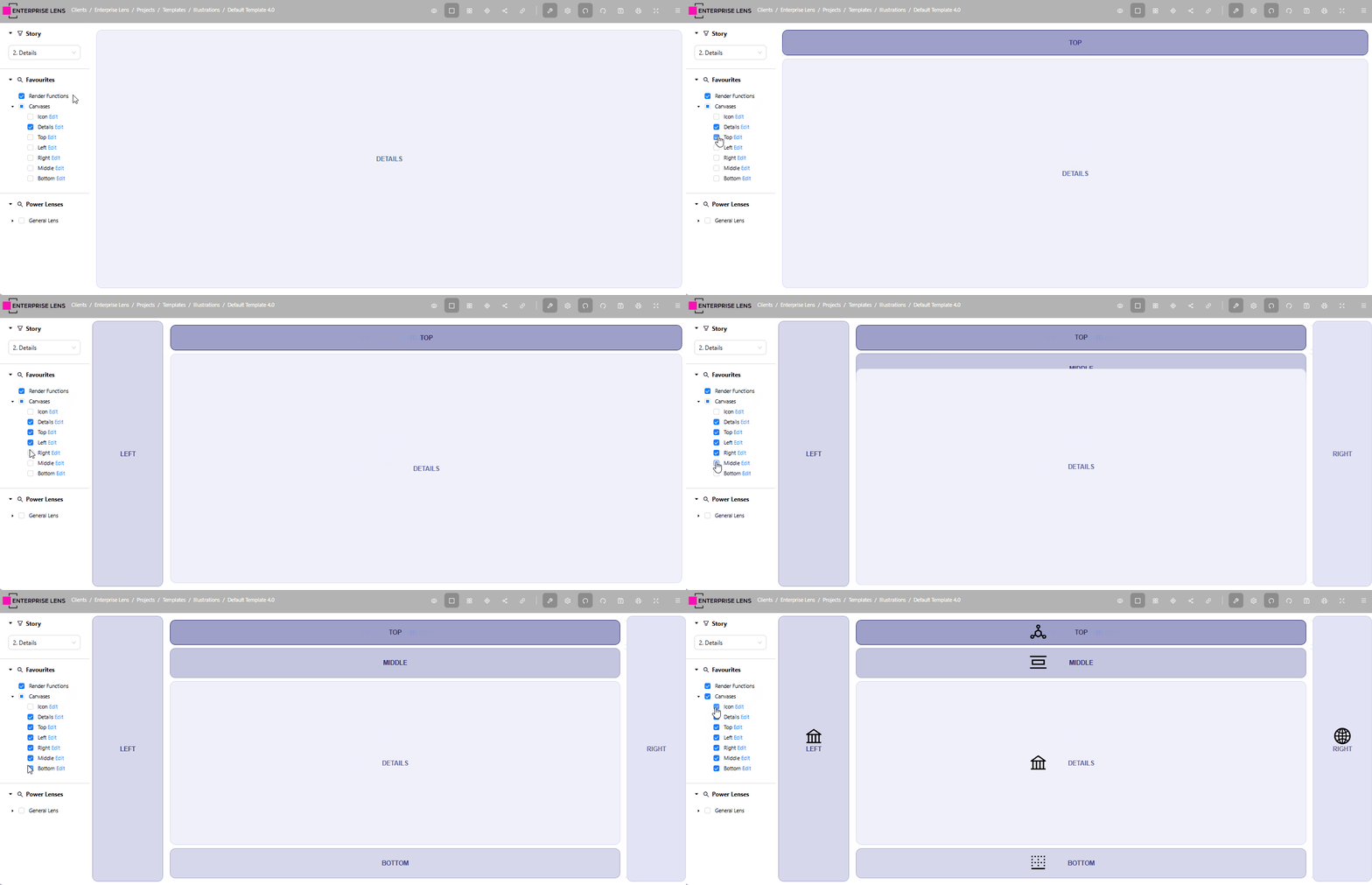
You can manage all six box types via the new Favourites Menu, allowing you to make a box type visible on demand, whenever you require it.
1.10. Lens Library 4.0
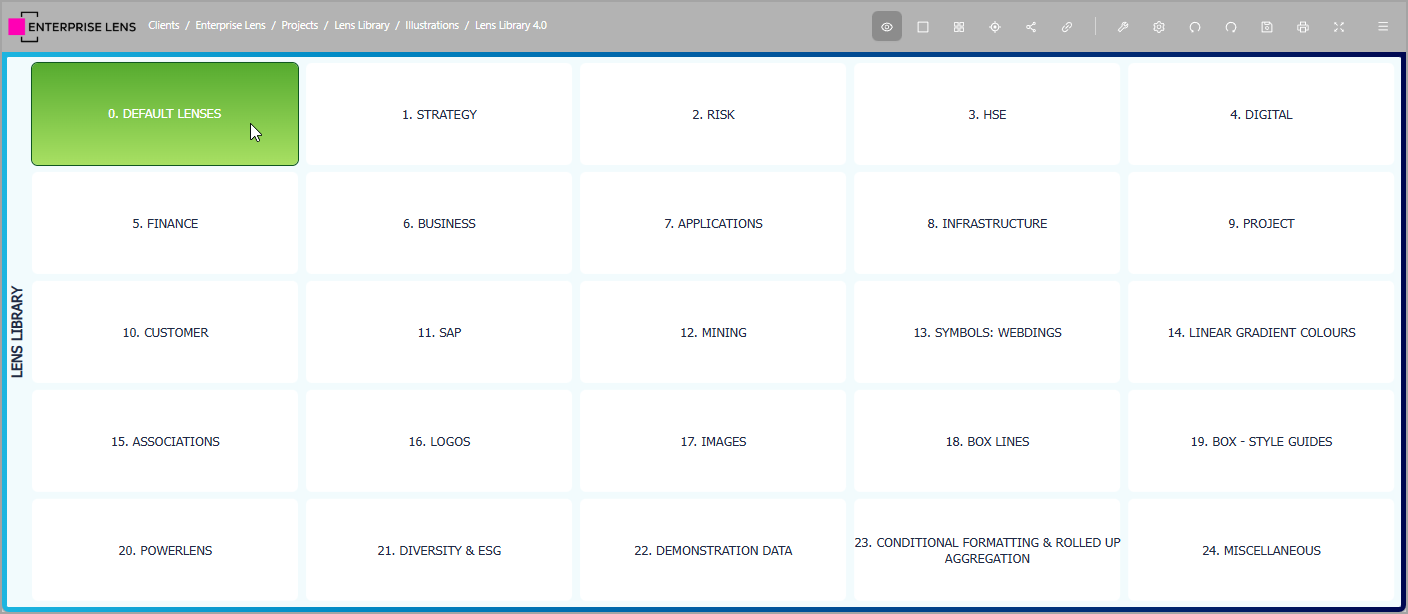
Featuring over 300+ pre-built static lenses and the addition of conditionally formatted lenses, the Lens Library 4.0 represents the biggest, most feature rich, collection of lenses to date.
1.10.1 Unlimited Badges
No lens within the Lens Library should conflict with each other, this is possible because all Lenses now include a unique badge identifier that follows the syntax: badges.NAMEHERE
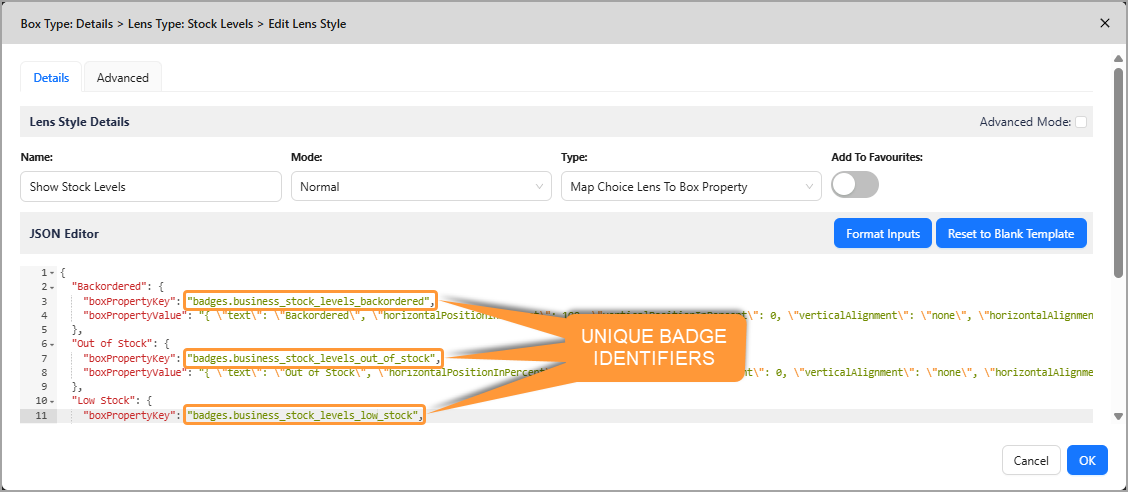
In the example above, if a box has both values Backordered and Low Stock, both badges within the Lens will display alongside each other.
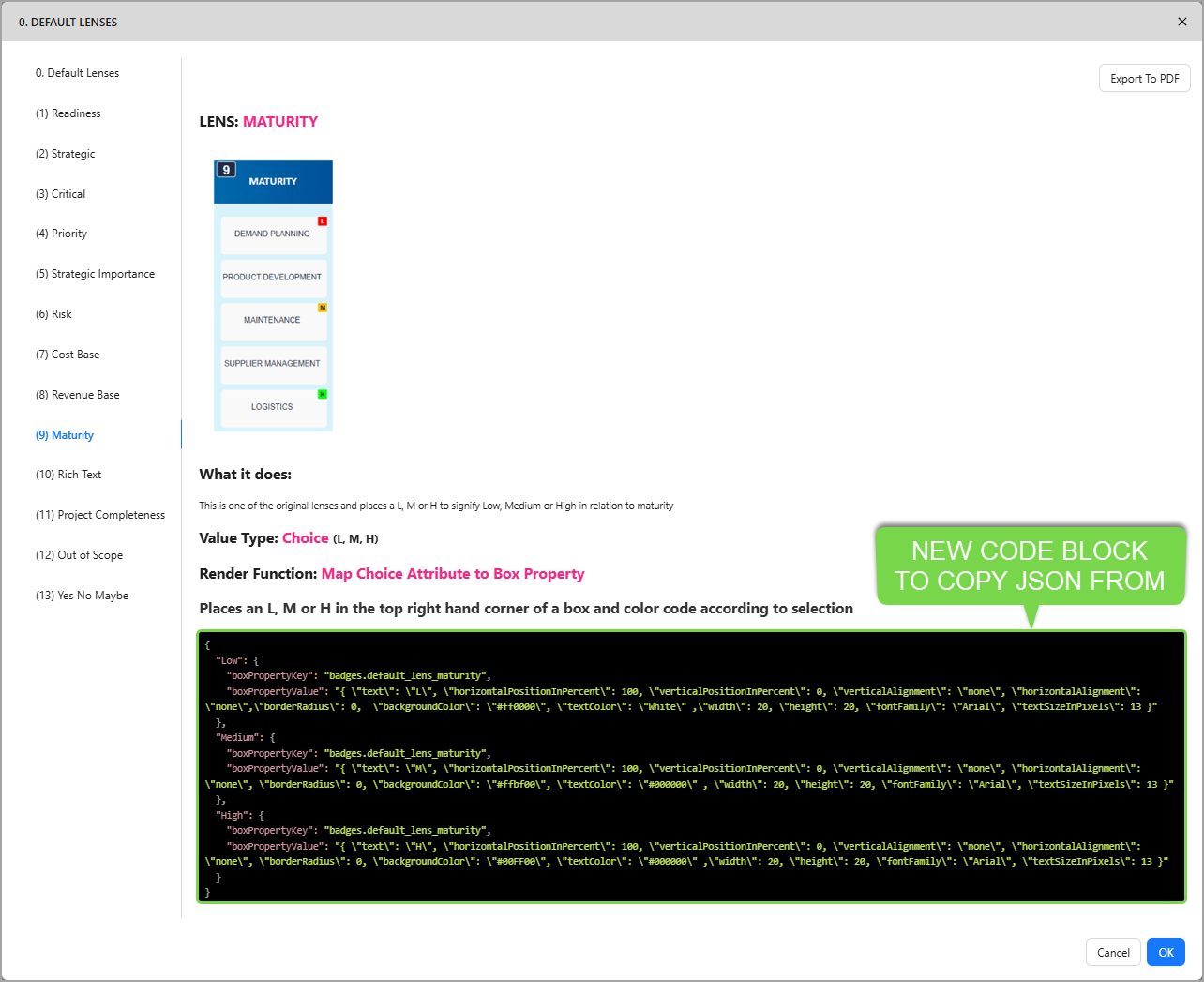
1.10.2 New Code Block Format
Lens JSON is now easier to copy, with a new code block format for JSON to be copied and pasted from in the Lens Page.
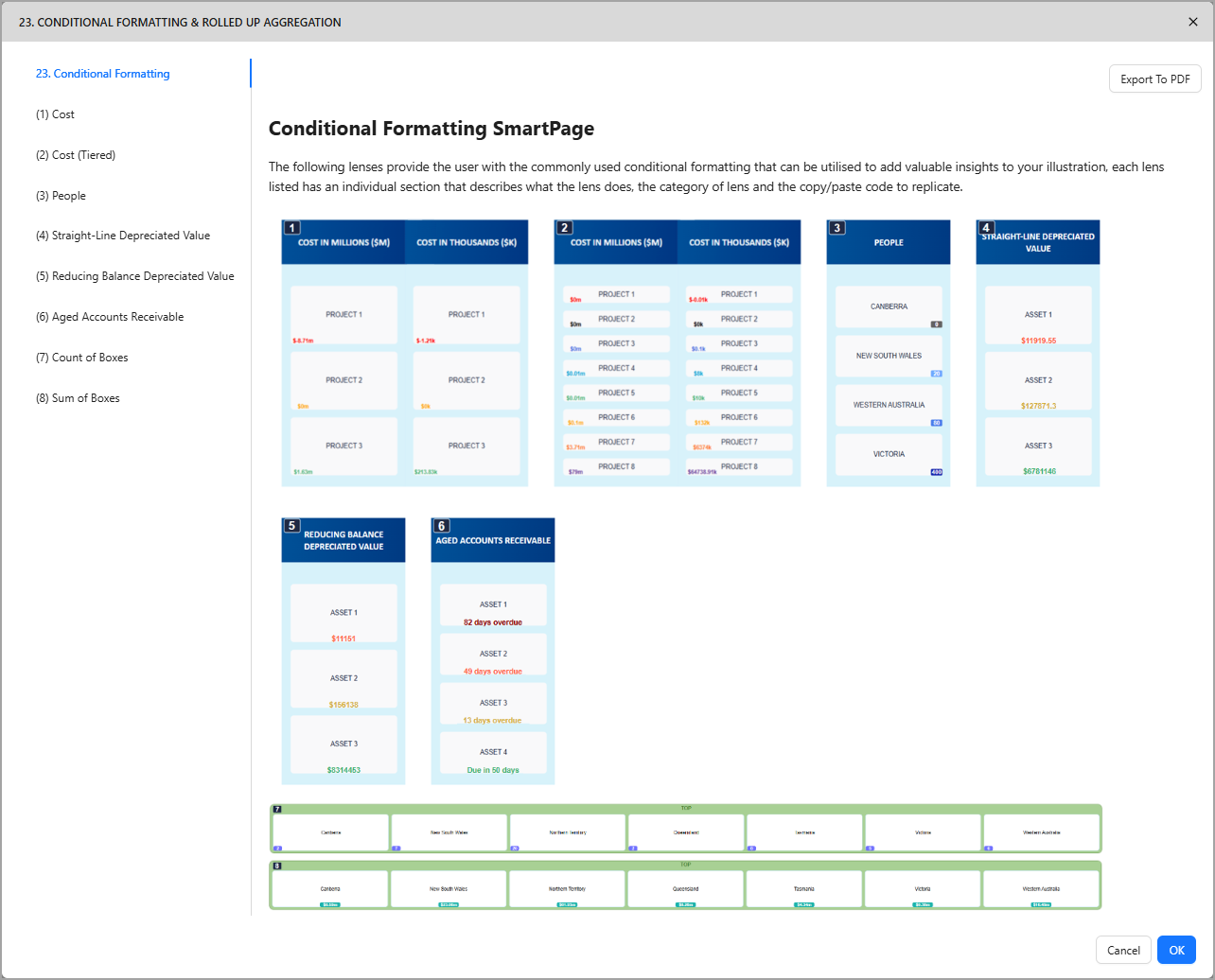
1.10.3 New Conditional Formatting Section
You are now able to import pre-built conditionally formatted lenses into your illustrations from the new 23. Conditional Formatting section.
1.11. New Right Hand Menu Abilities
Site administrators can now grant granular access to entries in the Right Hand Menu, with each collapsible section representing a new ability to grant.
You need the following abilities granted to a role prior to adding these new Abilities.
ClientsView , ClientView, ProjectView, IllustrationView, IllustrationBoxesView, IllustrationEditSidebarView, IllustrationEditSidebarEdit, IllustrationVisibilityView
You need the IllustrationTypesAdd, IllustrationTypesEdit IllustrationTypesDelete abilities to use the options available inside these collapsible menus.
| Ability | Description |
|---|---|
IllustrationVisibilityView | View the collapsible to control the menus in the Left Hand Menu through the added Menu Visibility collapsible |
IllustrationSizingView | View the collapsible to control the spacing between boxes in an Illustration through the added Illustration Sizing collapsible |
IllustrationImportExportView | View the collapsible to Import and Export an Illustration through the added Import/Export collapsible |
IllustrationBoxTypesView | View the collapsible to edit Box Types in an Illustration through the added Box Types collapsible |
IllustrationFavouritesView | View the collapsible to edit the Favourites Menu in the Left Hand Menu through the added Favourites collapsible |
IllustrationLensGroupsView | View the collapsible to edit the Lens Groups visible in the Left Hand Menu through the added Lens Groups collapsible |
IllustrationPowerLensesView | View the collapsible to edit the Power Lenses visible in the Left Hand Menu through the added Power Lenses collapsible |
IllustrationPowerLensGroupsView | View the collapsible to edit the Power Lens Groups visible in the Left Hand Menu through the added Power Lens Groups collapsible |
IllustrationStoriesView | View the collapsible to edit the Stories in an Illustration through the added Stories collapsible |
IllustrationAssociationsView | View the collapsible to edit the Associations in an Illustration through the added Associations collapsible |
IllustrationJSONView | View the collapsible to edit the JSON in an Illustration through the added JSON Editor collapsible |
IllustrationDetailsSectionView | View the collapsible to edit the Illustration Details in an Illustration through the added Illustration Details collapsible |
For more information on Role Based Access Control (RBAC), please visit our dedicated resource page here.
2. Improvements
2.1 New Lens Page Editor
Our previous BRAFT editor has been replaced with the new feature-rich TipTap Editor, with expanded support for rich-text formatting, tables, and images.
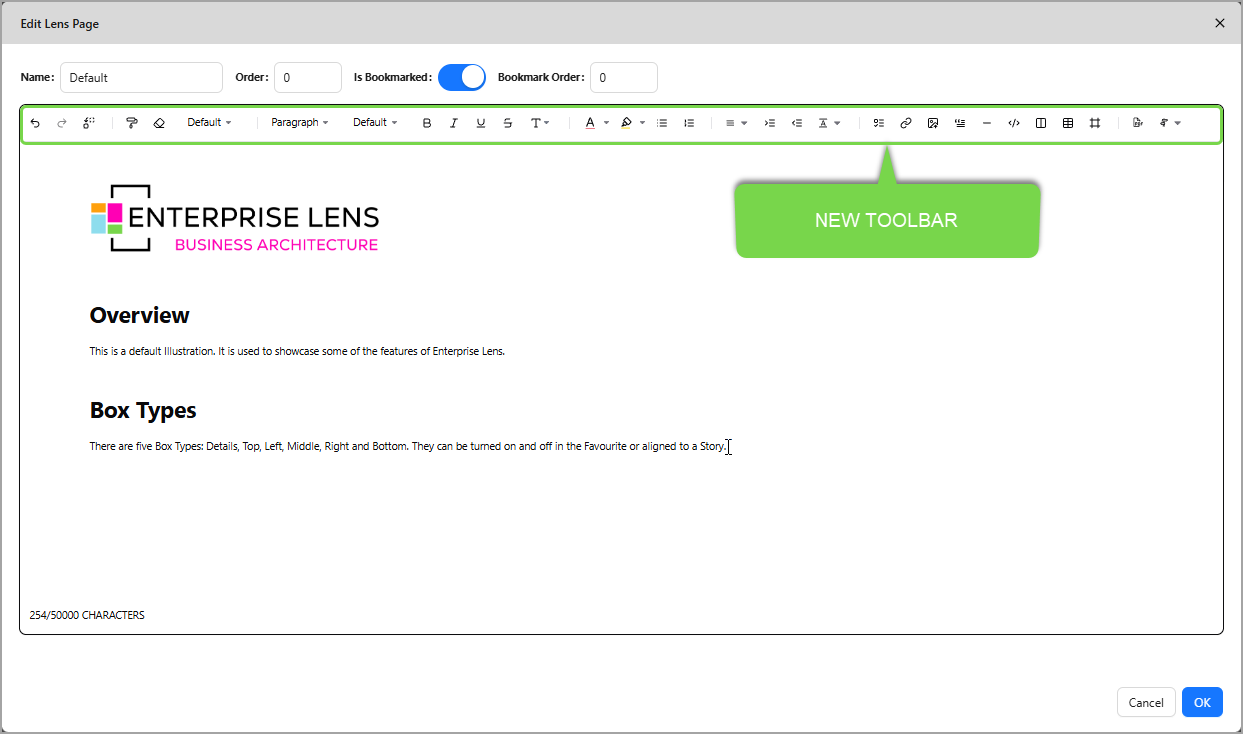
All features of the new Lens Page editor can be viewed in the toolbar, and are listed below from left to right.
New Features
| Feature | Description |
|---|---|
| Undo | Restores your lens page prior to your most recent edit. |
| Redo | Reapplies a previously undone action. |
| Search and Replace | Find and replace specific portions of text. |
| Format Painter | Select an area of your lens page to quickly apply the same formatting, such as colour and font size. |
| Font Family | Choose the Font Type for your text. |
| Headings | Change the size of your text according to pre set Heading sizes. |
| Font Size | Granularly change Font Size in pixels. |
| Bold | Applies bolding to text. |
| Italics | Applies italics to text. |
| Underline | Applies underlining to text. |
| Strike | Applies strikethrough to text. |
| Text Styles | Set text as either subscript or superscript. |
| Colour | Set the colour of text. |
| Highlight | Highlight text in a colour of your choosing. |
| Bullet List | Create a bullet pointed list. |
| Ordered List | Create a numbered list. |
| Align | Left, right, center or justify align your text. |
| Indent Tab | Insert an indented tab in your text. |
| Outdented Tab | Insert an outdented tab, useful for undoing an indented tab. |
| Line Height | Control the space between lines of text. |
| Task List | Create a list of tasks. |
| Link | Inserts a website link of your choice. |
| Image | Uploads and inserts an embedded image of your choice. |
| Blockquote | Inserts a block-styled quote. |
| Horizontal Rule | Inserts a horizontal dividing line in-between your text. |
| Code Block | Inserts a code block to paste code inside your Lens Page. |
| Columns | Inserts columns, capable of holding Rich Text. |
| Table | Inserts a table, capable of holding Rich Text. |
| iframe | Embeds a website of your choice. |
| Export PDF | Exports your lens page to a PDF. |
| Text Direction | Control the direction of your text, either from Left to Right, or Right to Left. |
2.2 Export Lens Pages
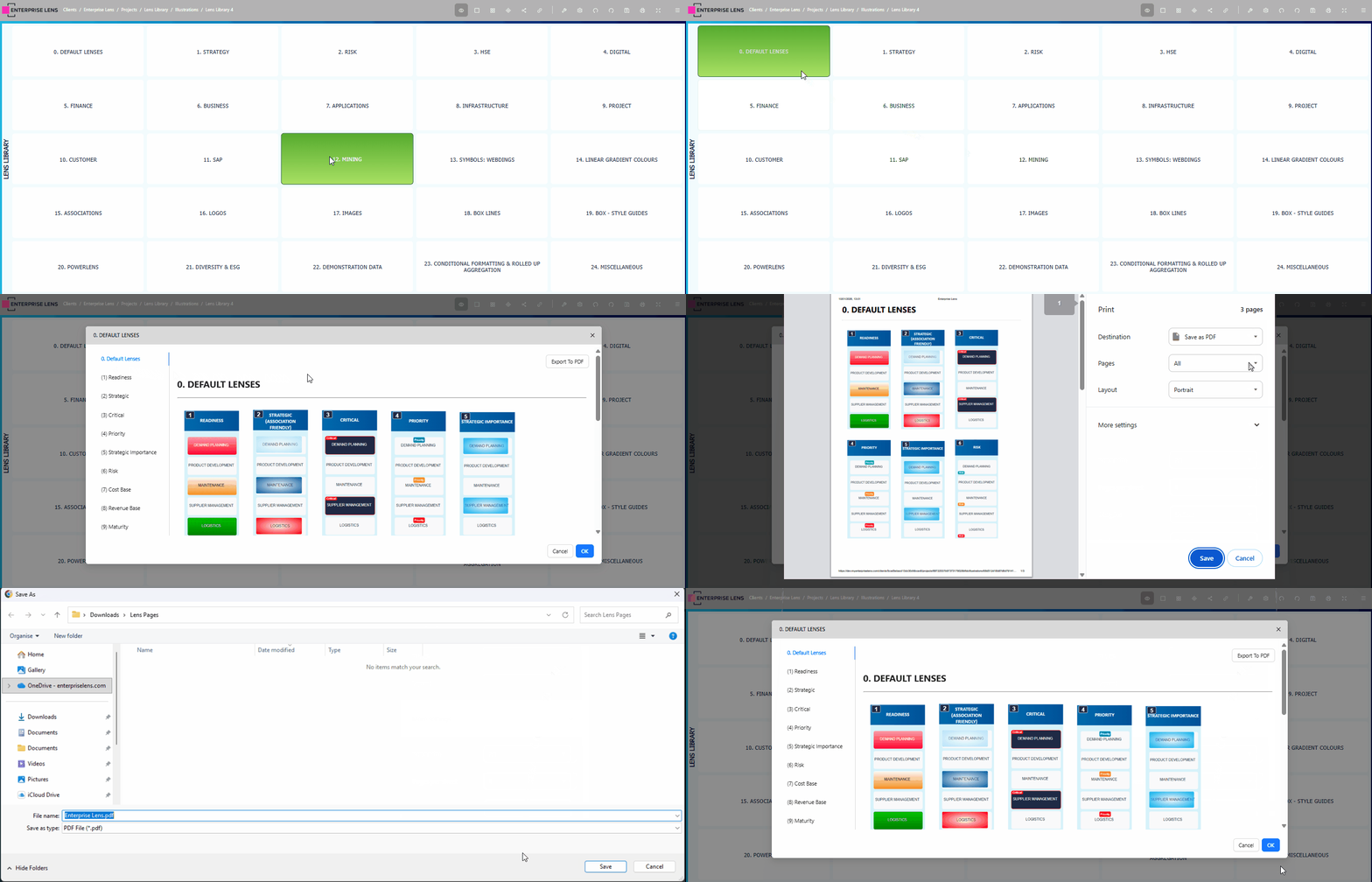
In View Mode, viewers are able to export any Lens Page to a PDF for easy external viewing. There are only three steps to exporting a Lens Page.
- Click on a box containing a Lens Page
- Click on Export to PDF
- Click Save
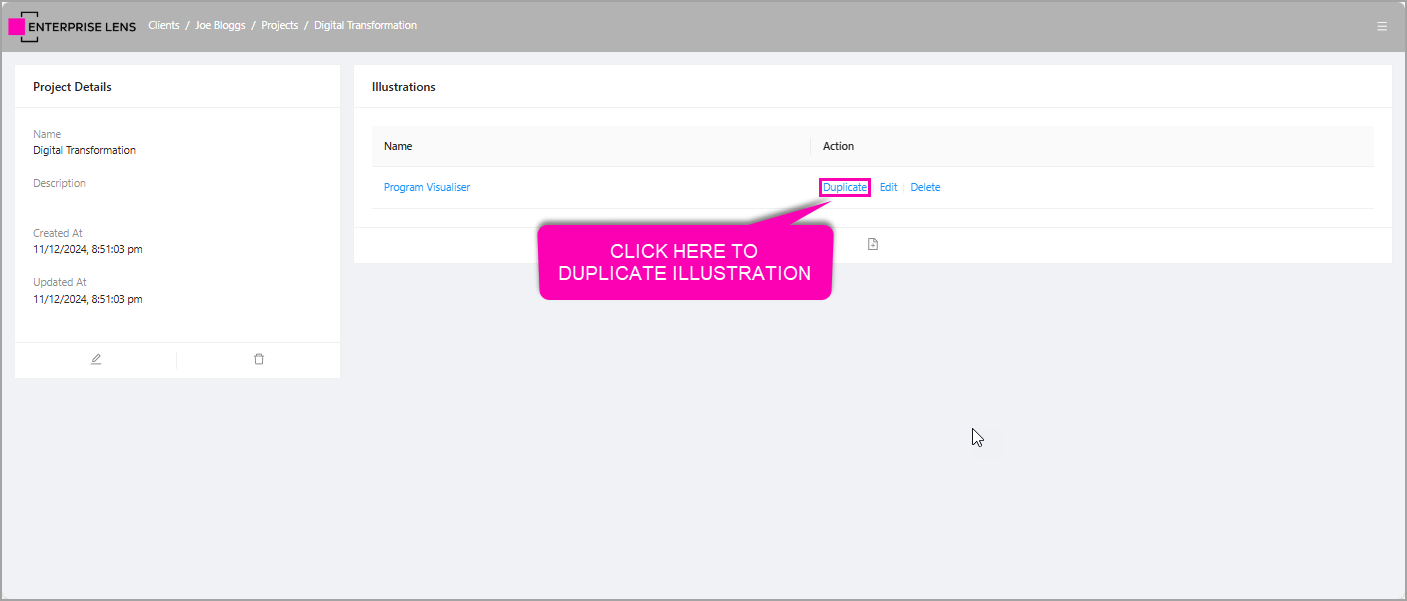
2.3 Duplicate Illustrations
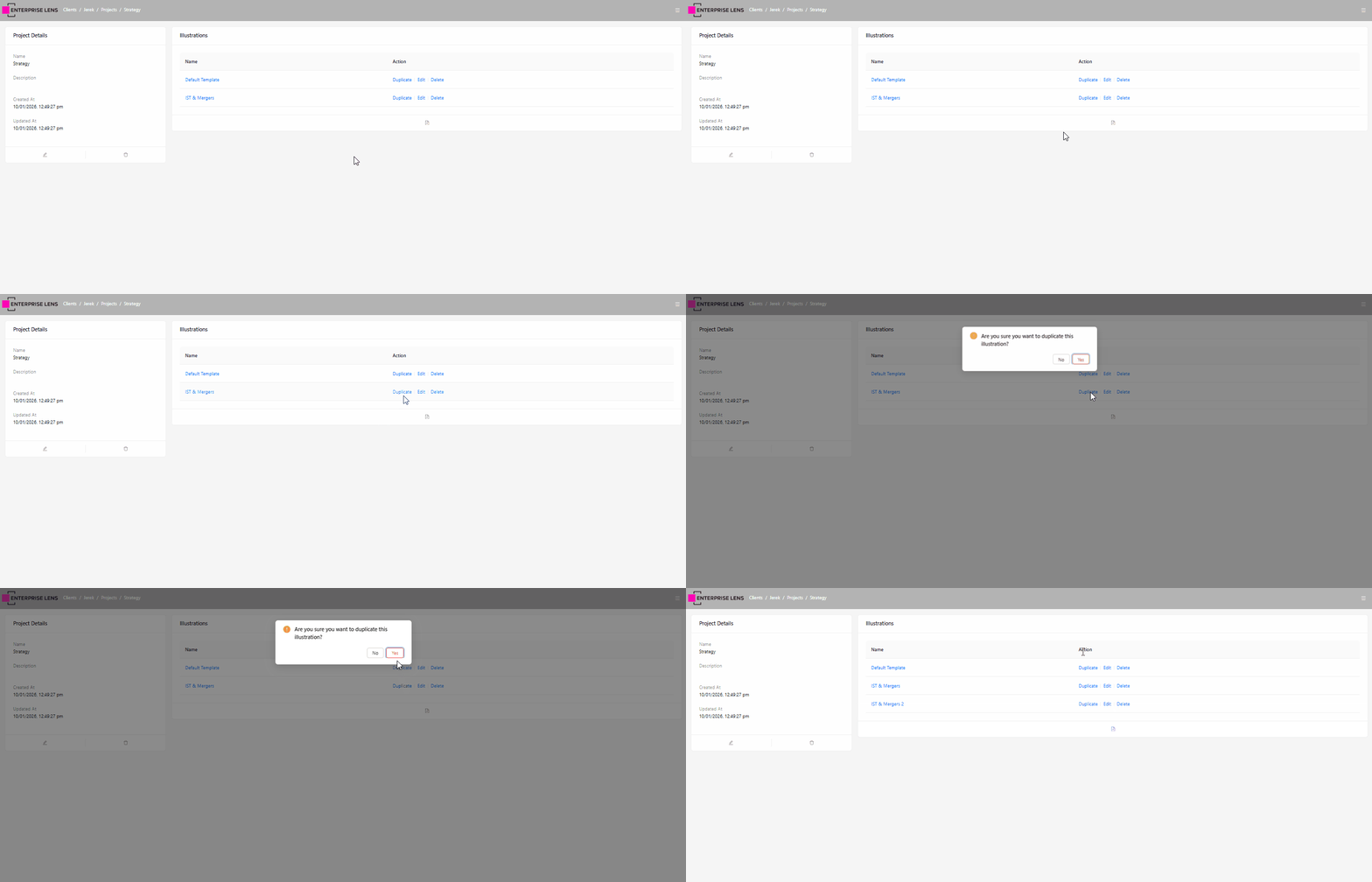
In Project Directories, Illustrators are now able to duplicate illustrations with the new Duplicate Illustration button next to the Edit button.
2.4 Speed and Performance
Opening illustrations and navigating client directories have up to 80% faster load times.
2.5 Business Architecture Branding
The Enterprise Lens logo has been updated to feature our new business architecture slogan.
2.6 Lens Groups
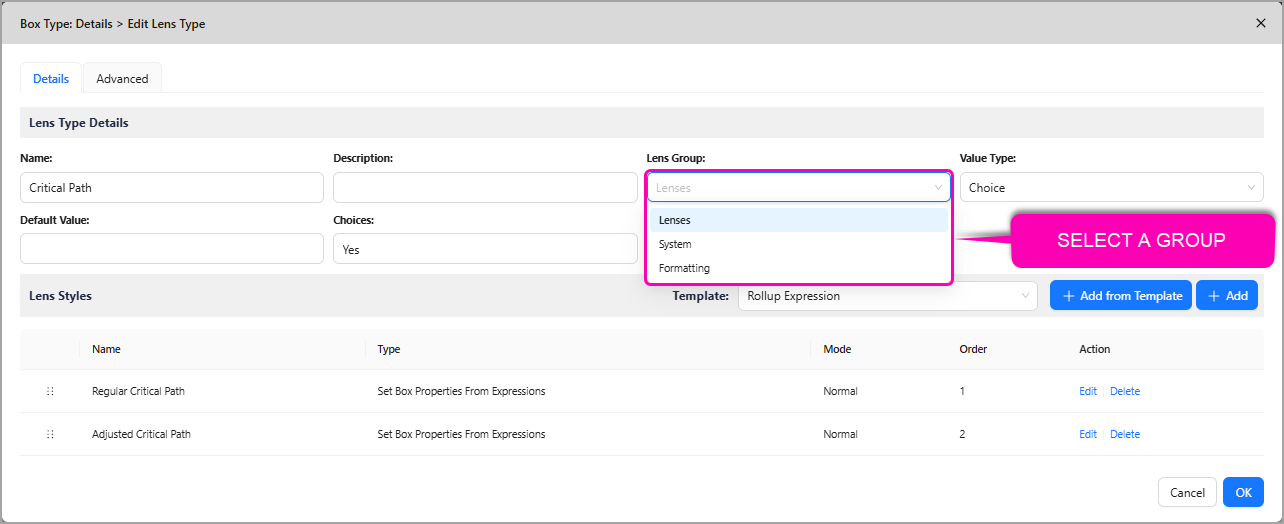
There are three new groups for lenses within box types, to help separate system level lenses from business data.
| Name | Use Case |
|---|---|
| Lenses | For business data (e.g. risk, status, name, dates) |
| Formatting | To format boxes (e.g. Gantt Chart, Conditional Highlighting) |
| System | For lenses that provide calculations or identifiers for Excel exports (e.g. ID, Is Canvas) |
By default, new lenses are added to the Lenses Lens Group. You can modify this by editing a Lens within the Edit Box Type menu and selecting a new Lens Group, as pictured below.
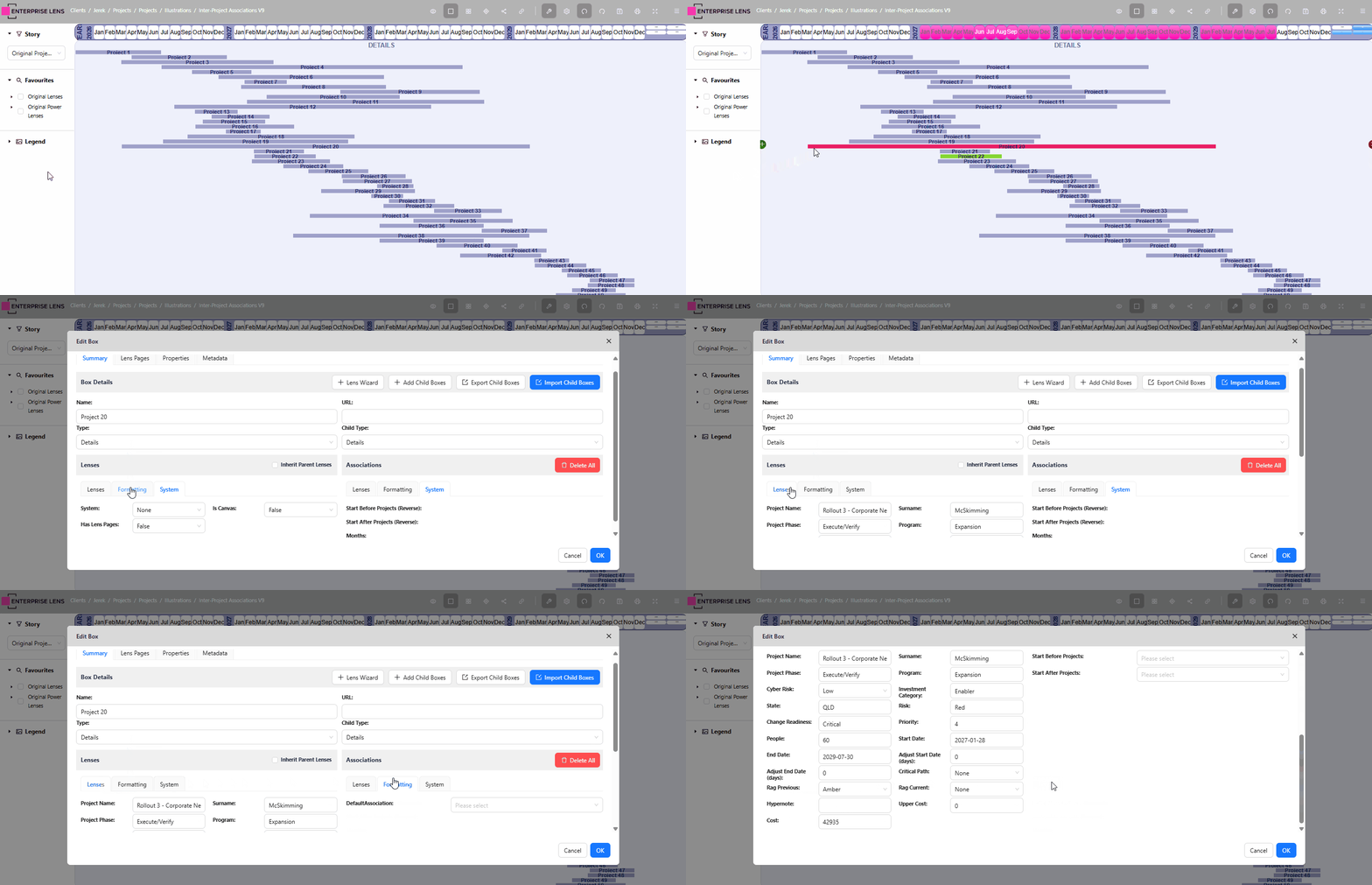
All Lens Groups are viewable within the Edit Box Form, and are further split into Lenses and Associations.
3. Quality-of-Life Enhancements
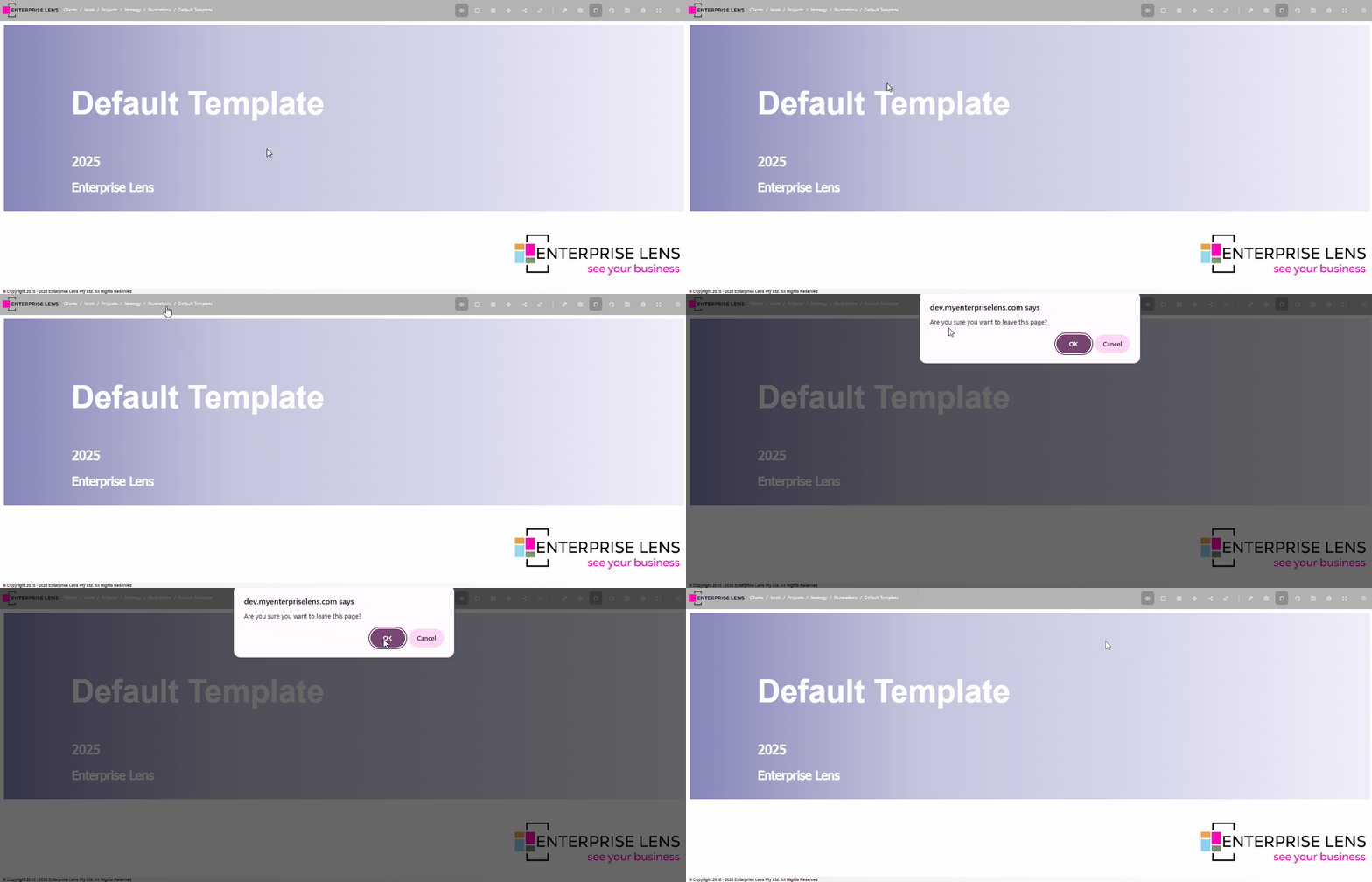
3.1 New Save before Exit Prompt
You are now prompted to ensure you have saved all changes prior to exiting an illustration.
3.2 MongoDB Upgrades
Enterprise Lens is now running the latest stable release MongoDB 8.2, featuring performance uplifts and robust data storage architecture.
.svg?auto=format%252Ccompress)
Source: MongoDB 8.0 Is Available Now | MongoDB
3.3 Typeahead for all dropdowns
All dropdown fields in Enterprise Lens now support typing ahead to filter entries.
| Example | Image |
|---|---|
| Associations (Edit Box Form) | 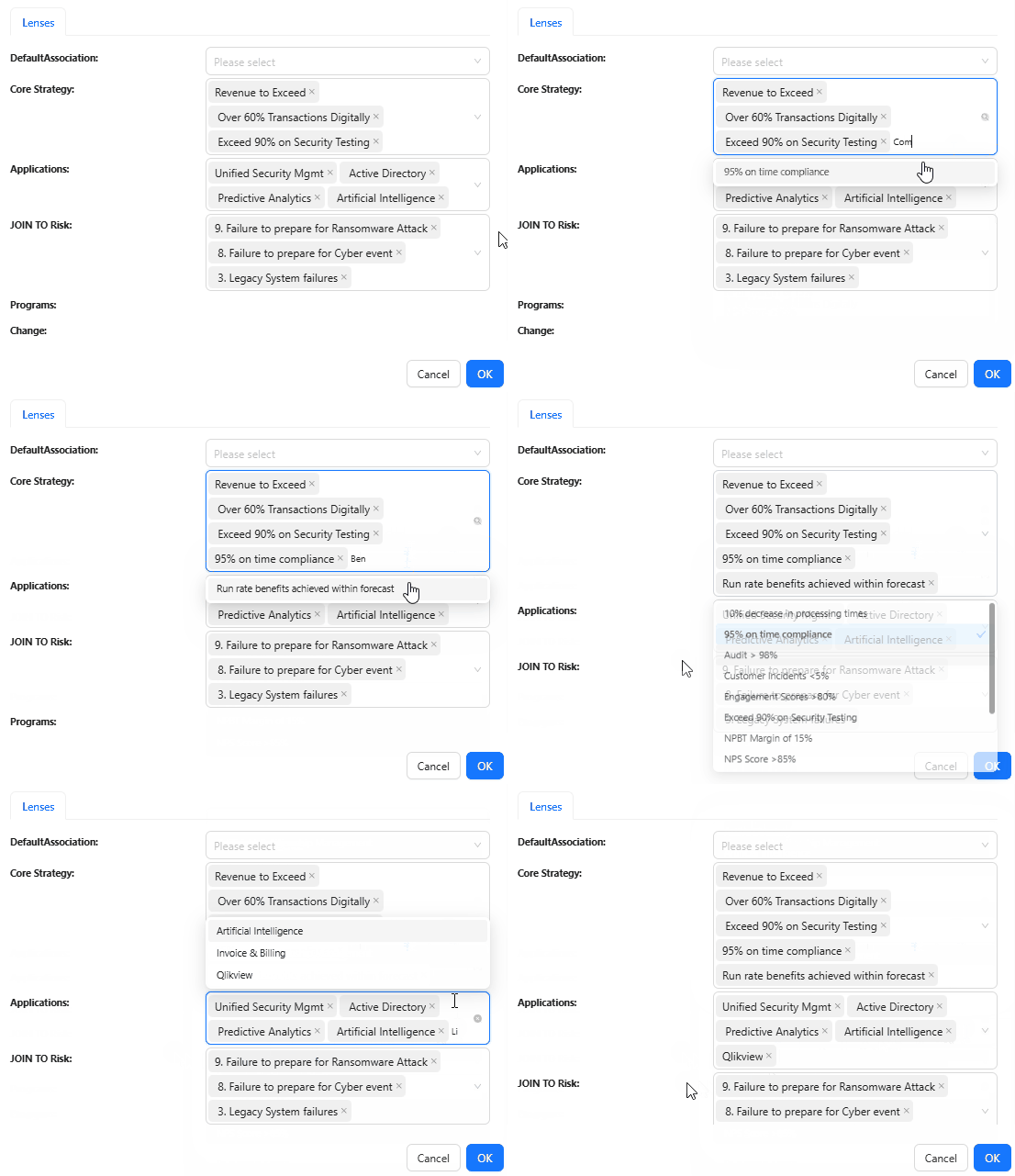 |
| Stories (Left Hand Menu) | 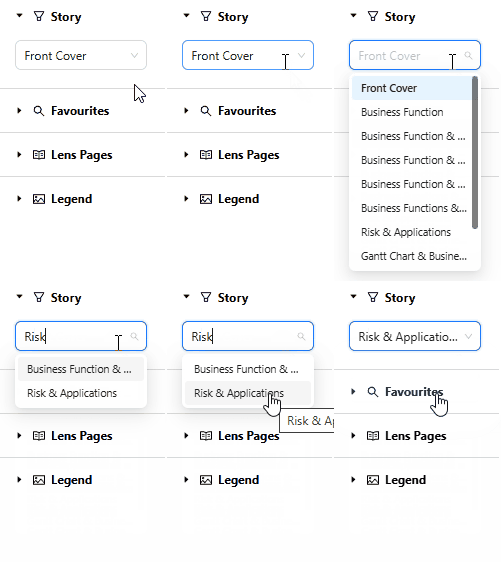 |
| Box Types (Edit Box Form) | 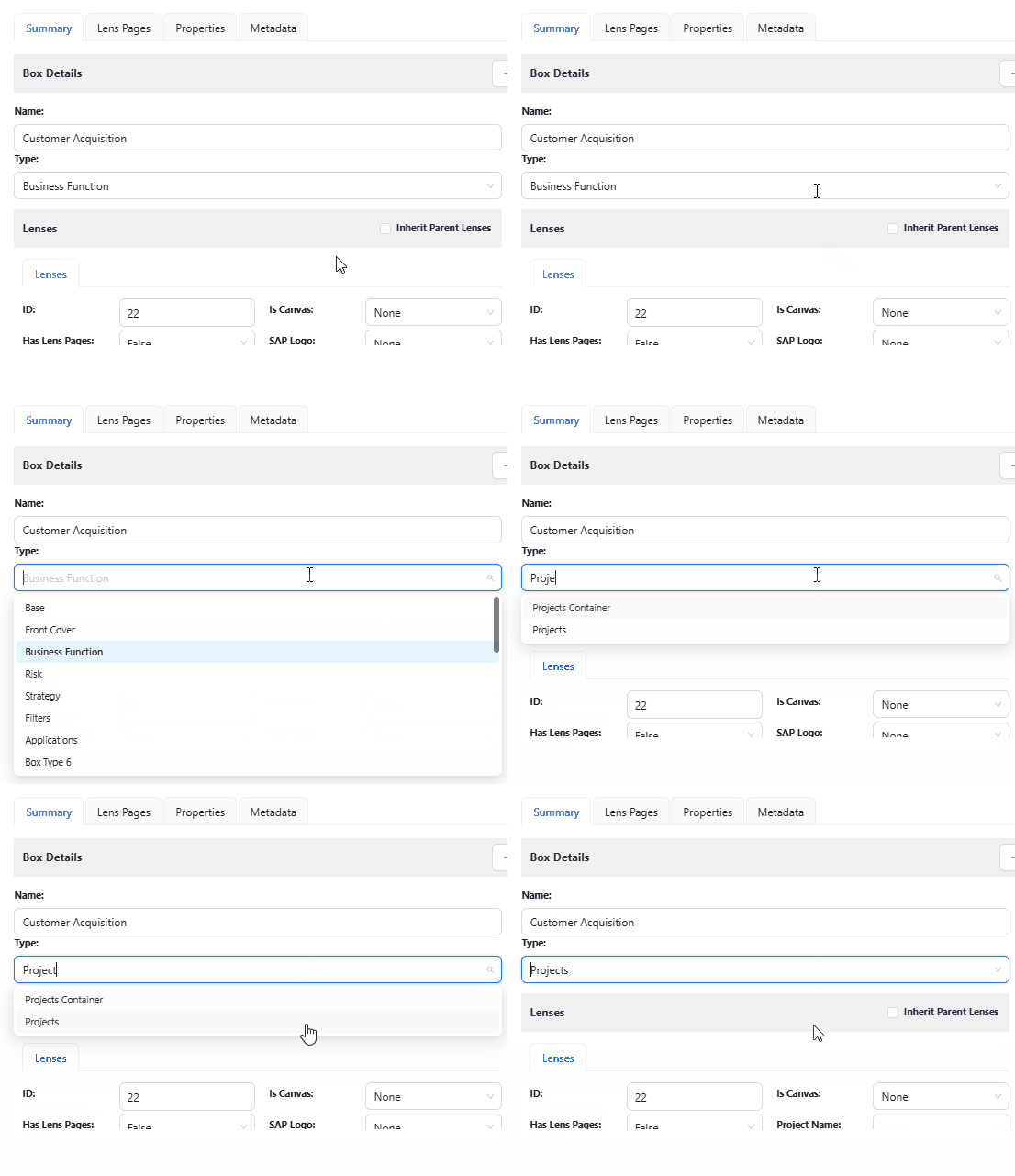 |
| Lens Value Type (Add Lens Type) | 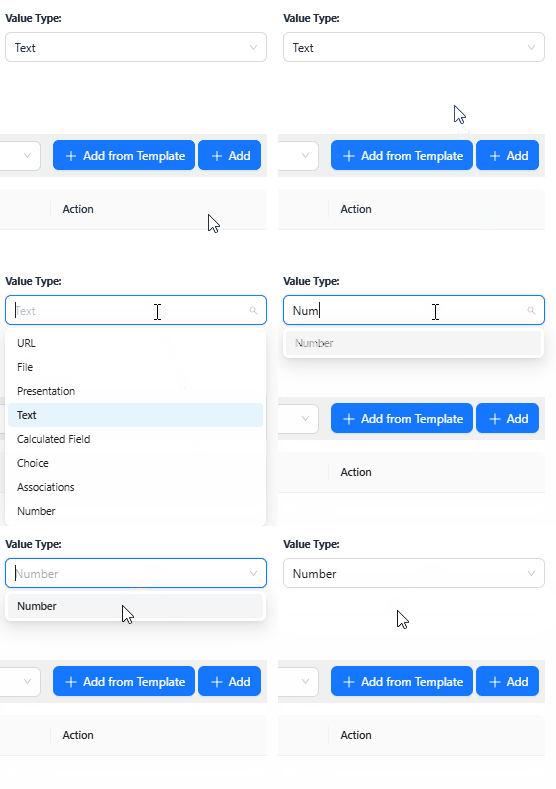 |
3.4 New JSON Editor
JSON can now be edited faster and in greater volumes through the new JSON Editor.
- In the below example, the Illustrator opened the Power Lens Groups JSON Editor to replace
SiteswithStates.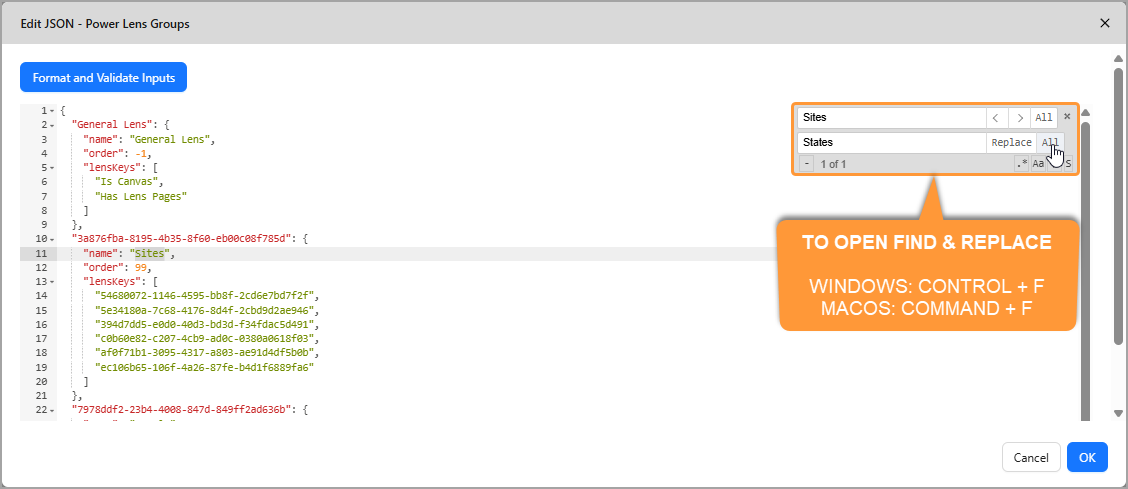
In order to open the Find and Replace panel, you need to press Control and F on Windows, or Command ⌘ and F on macOS.
3.4.1. Features
In addition to searching for a term to replace, there are multiple features built into the Find and Replace panel for Advanced users.
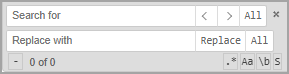
| Feature | Description | Example |
|---|---|---|
< and > | Allows you to browse through all instances of your search term. | |
All(next to < and >) | Allows you to you select all instances of your search term. | |
All(next to the Replace button) | Allows you to replace all instances of your search term. | |
.* | Allows you to enter a Regular Expression (RegEx) into the Search for field This is useful for when you want to capture multiple variations of your search term to replace | ^\d{3}-\d{3}-\d{4}$Searches for all standard 10 digit phone numbers in the format XXX-XXX-XXXX |
Aa | Allows you to toggle Case Sensitive Search, to ensure only the search term as you wrote it is returned. | Site with Case Sensitive Search on will not return state, only instances of Site |
\b | Allows you to toggle Whole Word Search, which prevents partial matches from being returned. | Site with Whole Word Search on will not return Sited, only instances of Site |
S | Allows you to search for your search term with the section of the JSON Editor you have highlighted. |
4. Jira Codes
4.1. New Feature
EL-107 Always ask to save your work when closing the Browser tab
EL-326 iFrame Support within the new Lens Page Editor
EL-619 Ability to Collapse the Right Hand Menu
EL-679 The Ability "IllustrationTypesAdd" does not appear to work for Box Types
EL-688 Add the ability to Duplicate an existing Illustration
EL-772 Sticky View - persist a user selection
EL-796 Ability to Change the display name of a Render Function/Lens/Attribute/Box Type in the Favourites Menu
EL-814 Automatically add a Rollup Badge to Favourites
4.2. Improvement
EL-286 Increase badge limit from 32 to Unlimited in Lenses
EL-512 Replace Lens Editor with new TipTap Editor
EL-579 Hide/move rarely used features in Edit Box Form
EL-666 Make the Box Type description only available when you EDIT the Box Type
EL-672 Remove "Import" button from the Edit Box Type Form
EL-726 Lens Wizard with Support for Rolled Up Aggregation and Conditional Formatting
EL-746 Use commas in data as a separator to create multiple values when using "Lens Wizard"
EL-751 Include Value Type for Attributes in Edit Box Type Menu
EL-753 Default values for Render Functions
EL-756 New "Business Architecture" tagline for the Login Logo
EL-760 Upgrade Ant Design to V5
EL-761 Upgrade to React 18
EL-762 Faster JSON editor to handle larger illustrations
EL-766 Amend "Create Automatic Filter" to provide the option of creating a Power Lens and/or a Lens
EL-767 Add a way to change displayed box names via a Lens
EL-768 Add a Favourites Menu to left hand menu
EL-769 Ability to Export a Lens Page when in View Mode
EL-771 Enrich property editing on Edit Box Page
EL-779 Rename within Lens Pages the "pop up label" from "Table" to Table of Contents"
EL-784 Ability to Change existing Render Functions/Power Lenses/Attributes/Box Types in the Favourites Menu
EL-785 Move Sticky View button next to Association Mode
EL-786 Order Power Lenses in the Favourites Selection Dialog according to premade Power Lens Groups
EL-787 Order Source Attributes in Create Automatic Filter and Introduce Typeahead Functionality
EL-792 (Role Based Access Control) New Abilities to control the visibility of sub menus/headers in the Right Hand Menu
EL-793 (Role Based Access Control) New Abilities to control the visibility of options in the Menu Visibility submenu, located in the Right Hand Menu
EL-797 Favourites Edit Links should be hidden in View mode regardless of permissions
EL-801 Expand the Editing Form for Lens Pages
EL-803 Simplify and rebrand interface for "Create Automatic Filter"
EL-810 Support Fonts in Export to PDF on Lens Pages
EL-815 Display Attributes created using Create Automatic Filter separately from other attributes
EL-816 Add Drag and Drop to Right Hand Menu and inside Edit Box Type Form
EL-818 Formatting tweaks to Rollup Editor
EL-822 Association Highlight Render function from Create Automatic Filter should be removed
EL-823 Expand the Favourites Menu by default in the Left Hand Menu
EL-825 Dynamic Form Widths
EL-826 Rearrange Edit Box Fields
EL-827 Rearrange Edit Box Type Fields
EL-828 Clean up Lens Wizard
EL-830 General UI Clean Up for V4
EL-831 Rename lenses system-wide
4.3. Bug
EL-349 Where there are many CHOICE options in an Attribute, it breaks Excel Export and List Validation
EL-501 Global Lenses don't like sharing badge IDs
EL-518 Importing Lenses and Global Lenses/Mixins conflict with existing Badges Numbers
EL-527 When you select "Select" from "Import Types" nothing happens
EL-576 If you use CTRL-Z (undo) in any of the JSON editor, it can delete everything sometimes
EL-597 Boxes "Keep Hidden Boxes In Illustration" does not persist when you Import and Export OR SAVE an Illustration
EL-741 Exporting an Illustration from its Front Cover, does not preserve the box visibility layout when reimported
EL-749 Re-importing a Canvas makes other hidden boxes visible again
EL-755 Association or Choice based attributes that have an in-cell dropdown greater than 256 characters causes an error
EL-757 Styling Issues with the new TipTap Editor
EL-758 Include Unlimited Badges/Lenses in "Map Choice Attribute to Box Property"
EL-759 Unlimited badges not working properly in boxPropertyExpressions
EL-770 Saving at Front Cover causes a hidden box to appear on load
EL-776 Improve automatic alignment for new Badges/Lenses
EL-777 Remove "Export to Word" functionality from Lens Page functionality.
EL-778 Using the "Green +" to add boxes randomly pops up the Edit Box Form at the end of clicking
EL-780 Lens Page Header not persisting in Edit Mode
EL-790 Inability to access illustration links directly, must log in directly to the environment URL and navigate
EL-794 Badges cannot display the Number 0
EL-795 Clicking OK on an Edit Box form after turning OFF an automatically created Power Lens, turns the Power Lens back on
EL-798 Cannot Add Render Functions or Attribute Types after Deep Linking Was Implemented
EL-799 (TipTap Editor) Visual artifacts appear on both Read Only and Edit Mode
EL-800 (TipTap Editor) Edit Controls show in Read Only Mode
EL-802 (TipTap Editor) Draggable Textbox inside Code Blocks
EL-812 (Rollup Editor) Selecting no attributes on a count breaks it
EL-813 (Rollup Editor) - Selecting an attribute where it is empty in some boxes causes the aggregate value to appear as NaN
EL-817 Editing an existing expression shows the Rollup Badge Editor not JSON Editor
EL-821 Set Text Size (in pixels) Property Render Function Template will not accept a Number

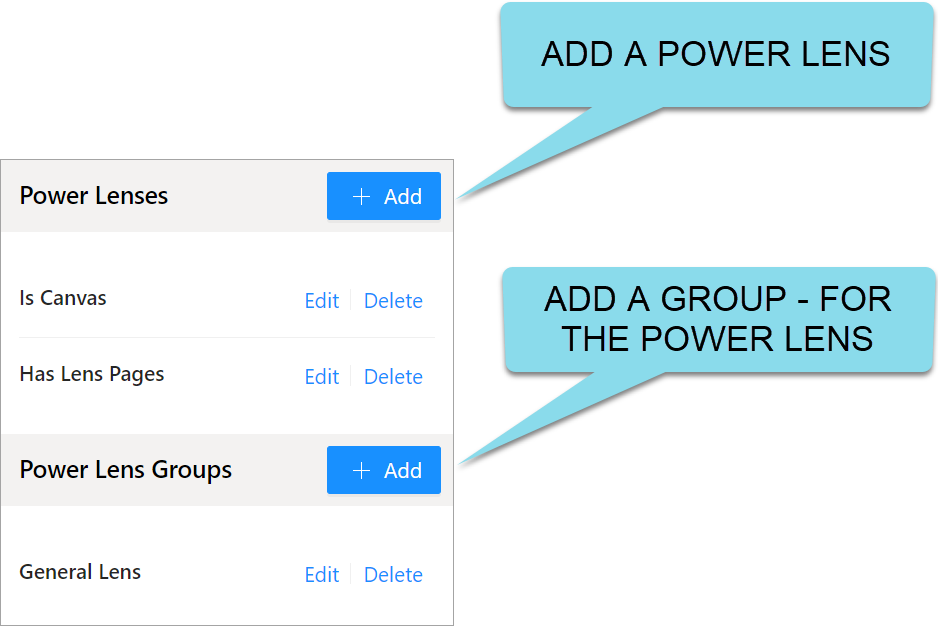


 in the Lens Groups section located on the Right Hand Menu.