Favourites Menu
Lenses, Lens Styles, Power Lenses, and Box Types can now be grouped and stored in the Favourites Menu for quick and easy access, with the grouping configurable per story.
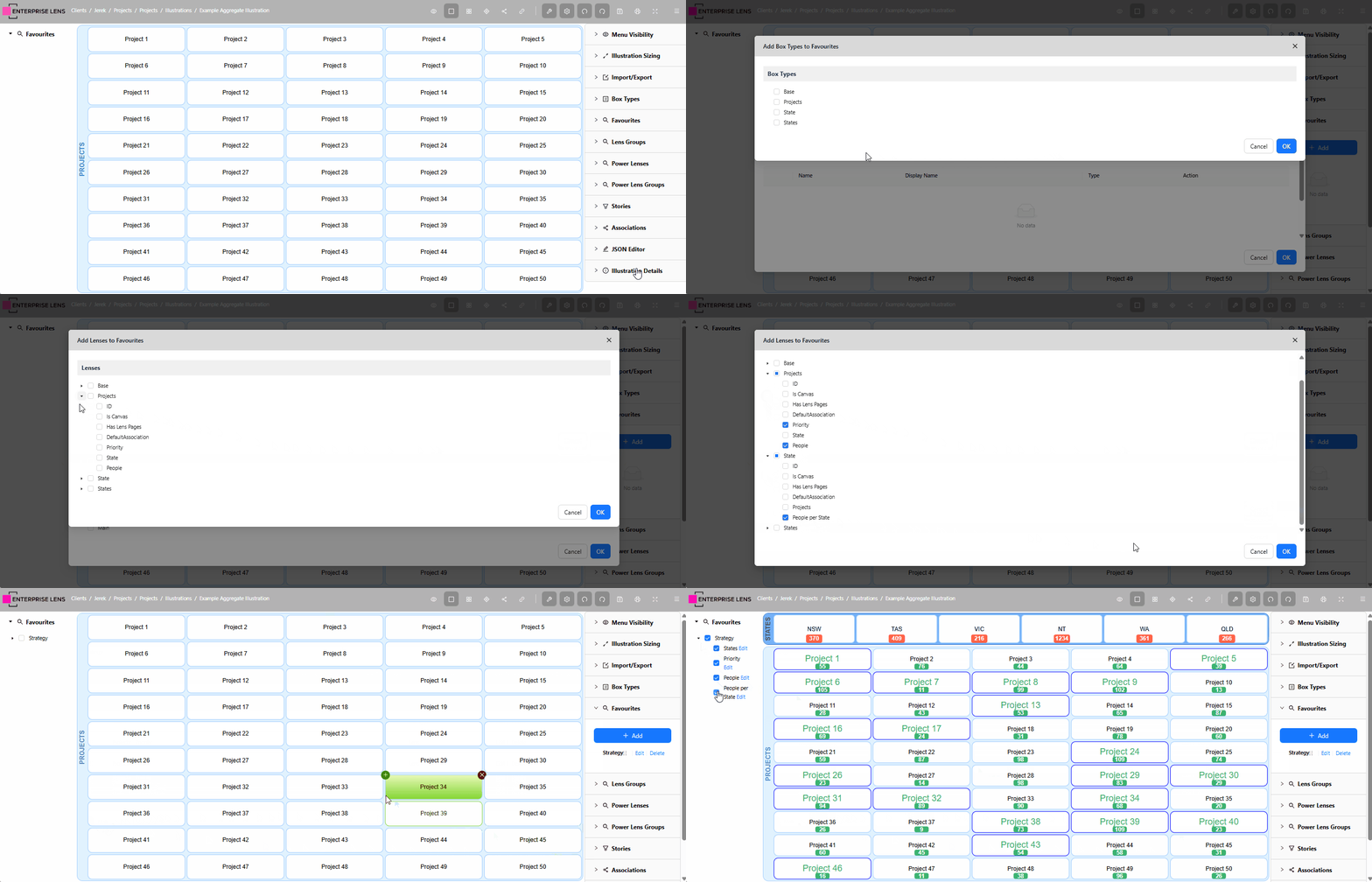
In the below image, the Illustrator groups Lenses for States and Projects with a Box Type under the Strategy Favourites Group.
1. Creating a Favourites Group
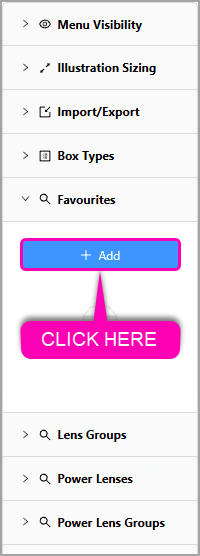
You can create your first favourite group in an illustration from the Right Hand Menu by opening the Favourites collapsible in the Right Hand Menu and clicking the + Add button.
Make sure to enter a Name for your Favourites Group, and select which Story the Favourites group will appear in.
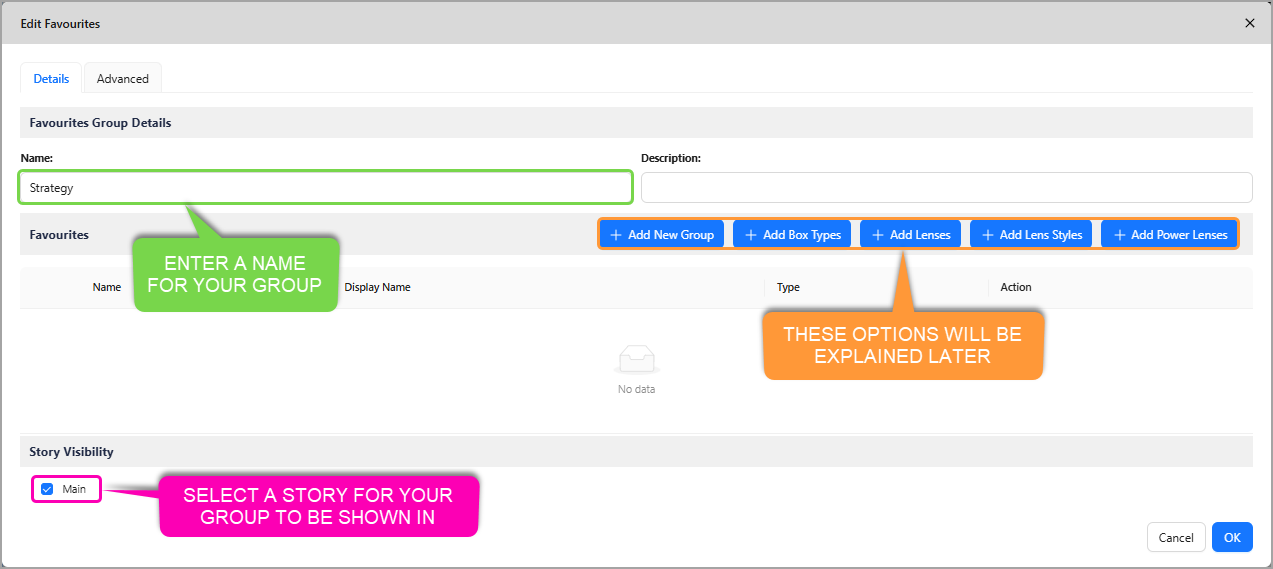
By default, a new Favourite Group belongs to no Story, however you are able to select one or multiple stories for your Group to appear in.
Below are all the types you can add to a Favourites Group, explained by Type.
2. Types of Favourites
2.1. Groups
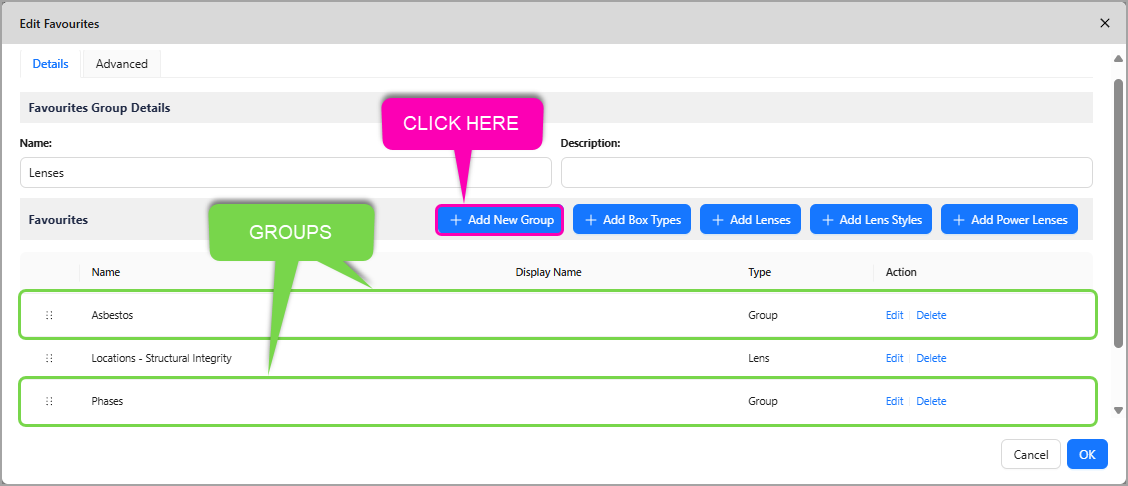
You are able to create new sub groups inside Favourite groups by clicking on the + Add New Group button.
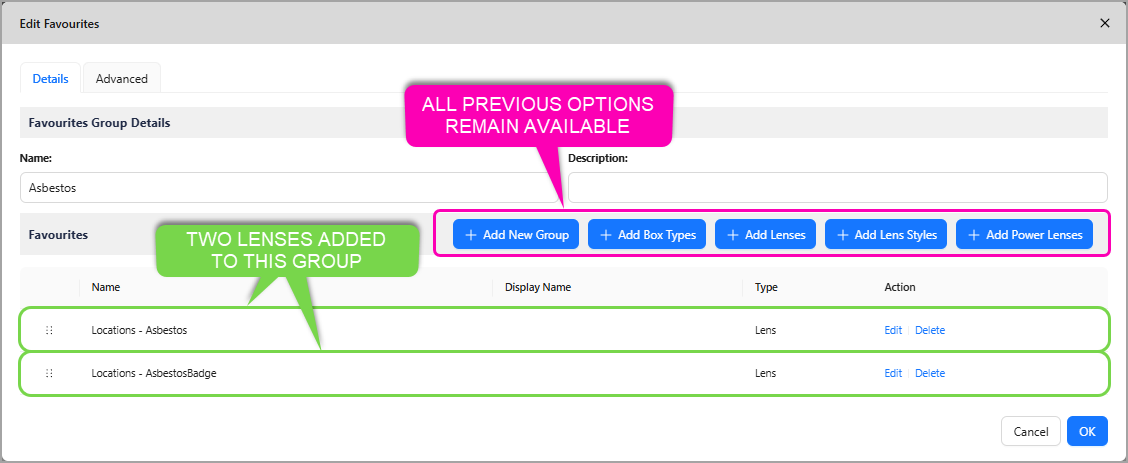
- Within a group, you can add Lenses, Lens Styles, Power Lenses, and Box Types, as well as more nested group
-
Groups will be listed alongside any other options you have added to your Favourites group, as pictured below.
Clicking the + Add New Group button will provide the exact same layout and options, the only difference is the group will be listed inside the group it was created from, as shown in the previous image.
2.2. Box Types
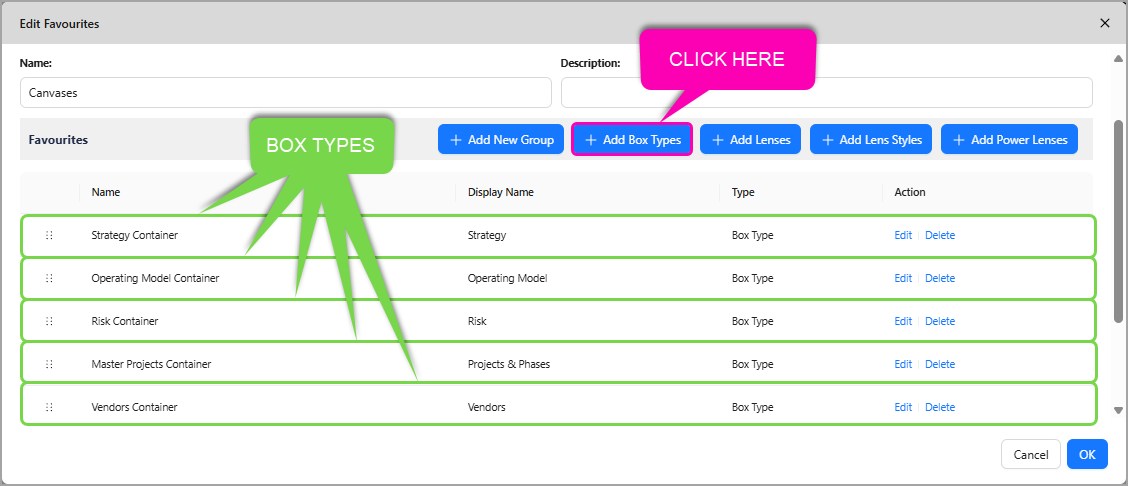
You are able to add Box Types to Favourites, this is useful for when you want to toggle on and off all boxes belonging to a certain type.
-
In the below example, the Illustrator has chosen to group all Box Types under one
Canvasesgroup. This enables the Illustrator to hide or show boxes from one centralised place in the Left Hand Menu.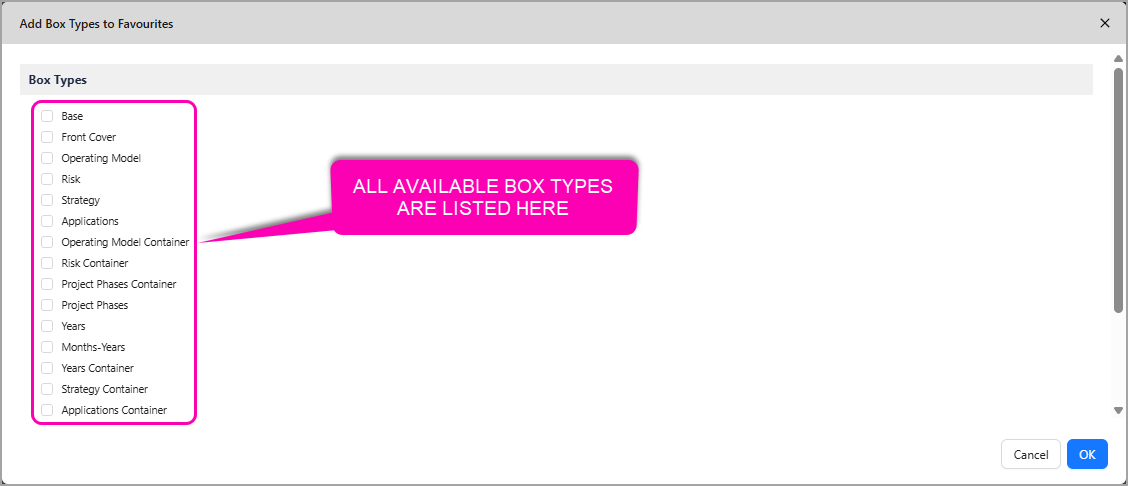
-
Clicking the + Add Box Types button provides you with a list of all available box types in an illustration to select from.
2.3. Lenses
You are able to add Lenses to Favourites groups, with no limit on how many groups you can include them in, or how many Lenses you can add.
-
In the below example, the Illustrator has chosen to create a
Lensesgroup with two Lenses featured inside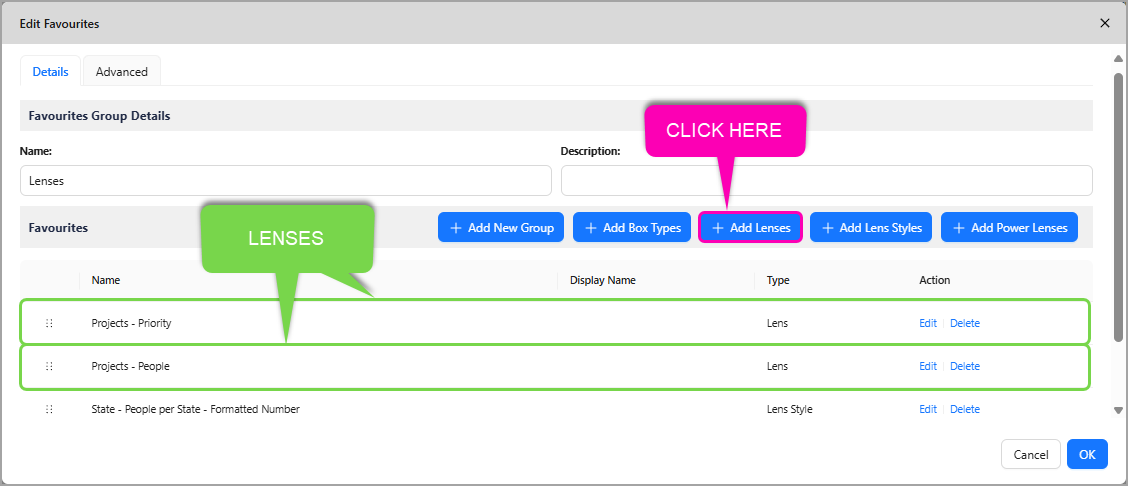
-
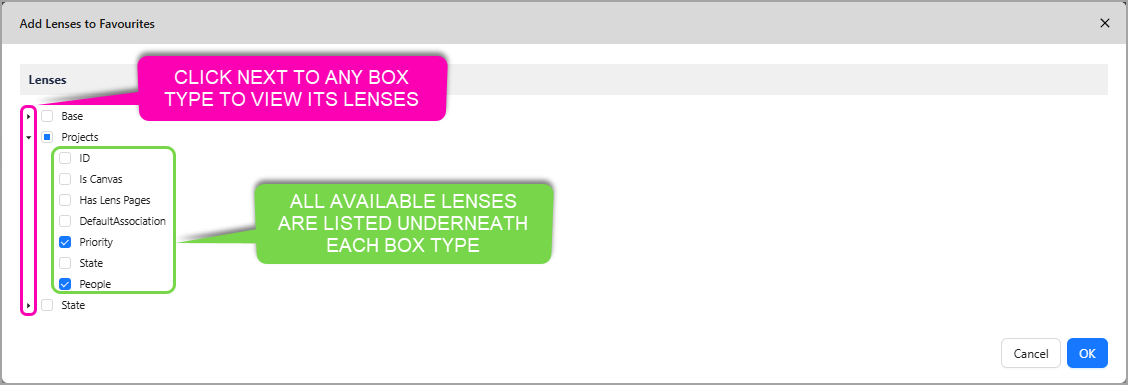
Clicking the + Add Lenses button provides you with a list of all available lenses, listed underneath each Box Type, for that illustration
2.4. Lens Style
You are able to add Lens Styles to Favourites groups, this is useful for when you want to display a specific style of a Lens as opposed to turning on all styles of a Lens.
-
In the below previous example, the Illustrator has a
Lensesgroup with one Lens Style featured inside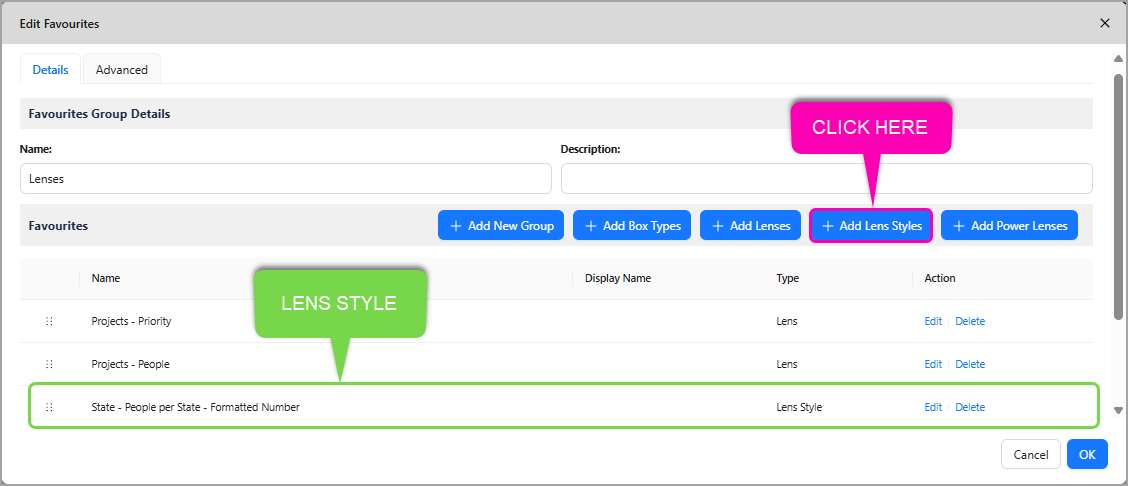
-
Clicking the + Add Lens Style button provides you with a list of all available lens styles, listed underneath each Box Type and respective Lens, for that illustration
In this example, the Illustrator chose to display the
Formatted Numberstyle for People per State Lens, as opposed to an Icon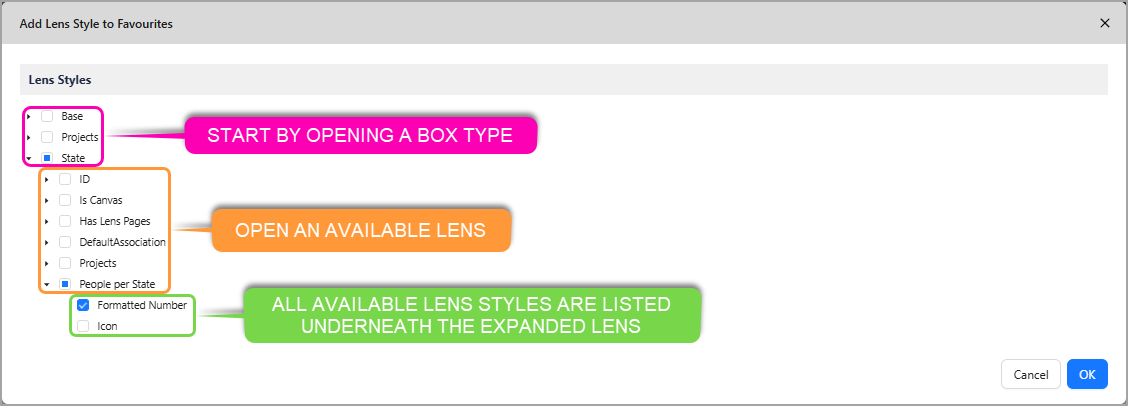
2.5. Power Lenses
You are able to add Power Lenses to Favourites groups, with no limit on how many groups you can include them in, or how many Power Lenses you can add.
-
In the below example, the Illustrator has chosen to add two Power Lenses under one
Filter by Significancegroup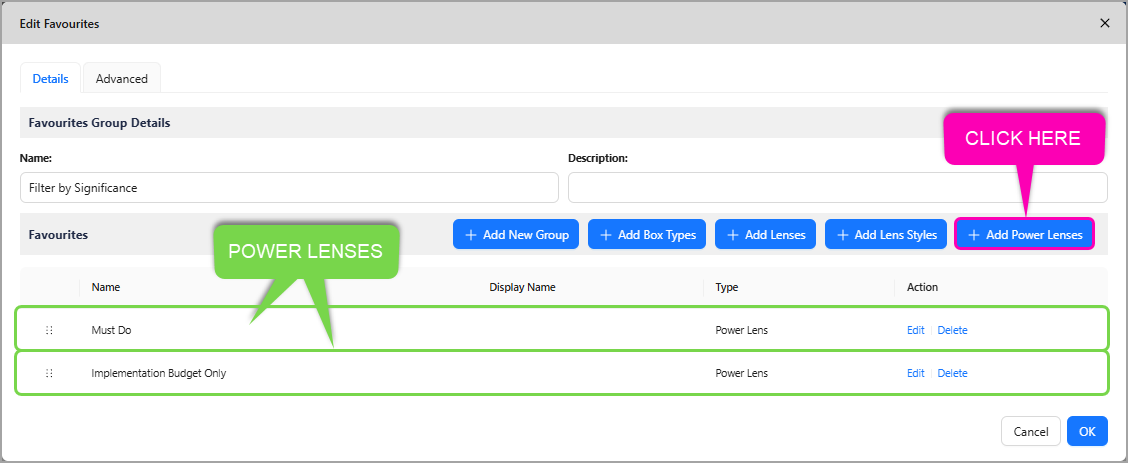
-
Clicking
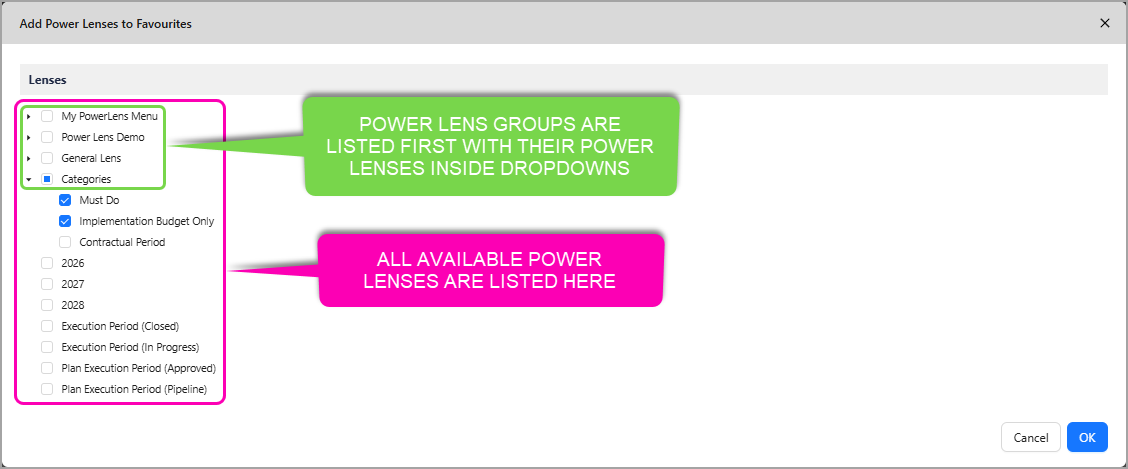
+ Add Power Lensesprovides you with a list of all available Power Lenses- All Power Lens Groups will appear first in the list, with any Power Lenses available under the respective group dropdowns
- Below Power Lens Groups are the ungrouped Power Lenses